Set up data collection with tracking
Prepr is a CMS that includes built-in A/B testing and personalization features. These capabilities require visitor data to measure your test results and to build segments for personalization. This chapter of the Nuxt complete guide shows you how to enable tracking to collect this data in your Nuxt front end.
Enable Prepr tracking and collect view events
The steps below continue from the previous section, Make your Nuxt project dynamic. If you don’t yet have a Nuxt project connected to Prepr, follow the previous steps listed in the Complete guide overview to create one. Otherwise, let’s get started.
Install the Prepr Toolkit
The Prepr Toolkit gives each website visitor a __prepr_uid cookie with a unique ID.
This visitor gets stored in Prepr with this unique ID, if they don’t already exist.
The toolkit also uses this cookie value to prepare the API request header, Prepr-Customer-Id, that you’ll send when you retrieve the page content for A/B testing and personalization.
Based on this value, Prepr retrieves the right content as follows:
- A/B testing: Prepr decides which variant, A or B, to return in the content.
- Personalization: Prepr checks the segment that this visitor belongs to and retrieves the matching personalized variant.
To install the Prepr Toolkit, follow the steps below.
-
In your Nuxt project, stop the localhost website server (
CTRL-C) if it’s running and install the package with the following terminal command:npm install @preprio/toolkit
Once done, you need to call a function in the package to prepare the API request headers before the page gets rendered in your website.
-
To do this, go to the
serverfolder of your project and create a subfolder,middleware, add a file calledprepr.tswith the following code../server/middleware/prepr.tsimport { handlePreprRequest } from '@preprio/toolkit/nuxt' // Gives every visitor a Prepr customer ID cookie and prepares the Prepr // request headers (customer ID, segment, A/B variant) for the page fetch. export default defineEventHandler((event) => { handlePreprRequest(event) })
Nuxt runs every file in server/middleware on each request, before the page renders.
The toolkit needs Nuxt’s default Node.js server, so this setup doesn’t work on edge runtimes such as Cloudflare Workers.
Enable Prepr tracking
When you enable Prepr tracking in your front end, it captures visitor data and lets you track how they engage with your content.
-
Add the highlighted code below to the
app/app.vuefile to add the Prepr tracking pixel to every page../app/app.vue<script setup lang="ts"> import { extractAccessToken } from '@preprio/toolkit/nuxt' import PreprTrackingPixel from '@preprio/toolkit/nuxt/components/PreprTrackingPixel' // The GraphQL URL is server-only, so resolve the access token on the server. // useState sends the value to the browser in the Nuxt payload. const accessToken = useState<string>('prepr-access-token') if (import.meta.server) accessToken.value = extractAccessToken(useRuntimeConfig().preprGraphqlUrl) useHead({ htmlAttrs: { lang: 'en' }, title: 'Prepr Nuxt complete starter', meta: [{ name: 'description', content: 'Showing the power of personalization and A/B testing' }], }) </script> <template> <NuxtRouteAnnouncer /> <NavBar /> <NuxtPage /> <PreprTrackingPixel v-if="accessToken" :id="accessToken" /> </template>
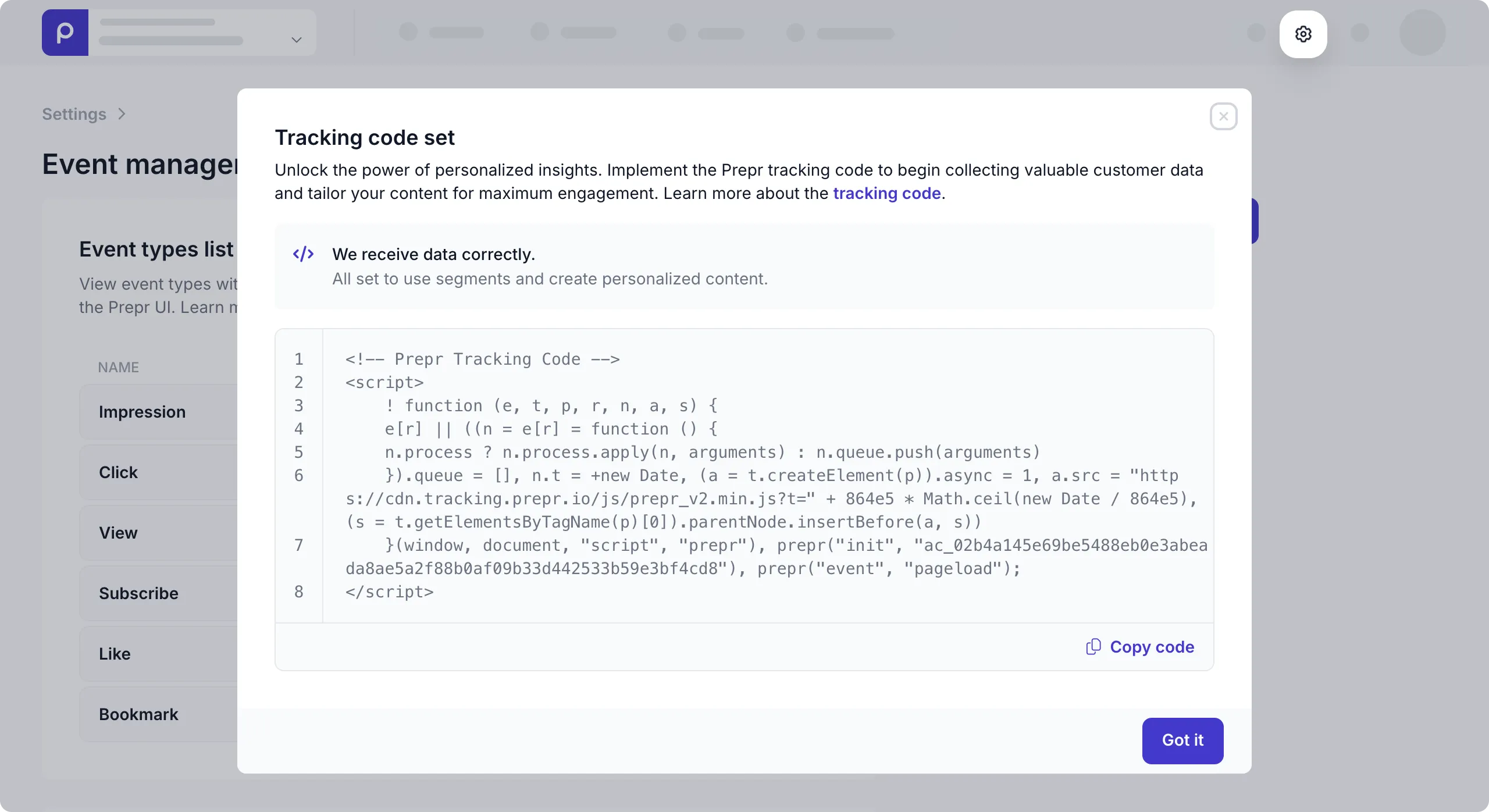
To see the tracking pixel value, in your Prepr environment, click the icon and choose the Event management option. Click the Get tracking code link to view the Prepr Tracking Code.
-
The toolkit’s Nuxt components don’t include TypeScript types yet. To avoid type errors in your code editor, go to the
appfolder and create a subfolder,types, and add a file calledprepr-toolkit.d.tswith the following code../app/types/prepr-toolkit.d.ts// @preprio/toolkit ships its Nuxt components as .vue source without type // declarations, so tell TypeScript what these imports are. declare module '@preprio/toolkit/nuxt/components/*' { import type { DefineComponent } from 'vue' const component: DefineComponent<Record<string, unknown>> export default component } -
Restart the server with
npm run devand refresh your website page in the browser. If there are no errors in the terminal console, Prepr tracking is set up successfully.
Track page view events
For the subsequent A/B testing and personalization sections in this guide, we want to track page view events.
To do this, add a content item meta property to the [...slug].vue file like in the highlighted code below.
The tracking pixel automatically recognizes this property and records the view event in Prepr.
Check out the data collection events docs for more details.
<script setup lang="ts">
import { GetPageBySlugDocument } from '~/gql/graphql'

const route = useRoute()
// The home page has no slug in the URL; in Prepr its slug is '/'.
const slug = (route.params.slug as string[] | undefined)?.join('/') || '/'

const { data } = await usePrepr(`page-${slug}`, GetPageBySlugDocument, { slug })

if (!data.value?.Page) {
  throw createError({ statusCode: 404, statusMessage: 'Page not found' })
}
const page = data.value.Page

// The tracking pixel reads this tag to record a View event for the page.
useHead({ meta: [{ property: 'prepr:id', content: page._id }] })
</script>

<template>
  <template v-for="(element, index) in page.content" :key="index">
    <HeroSection v-if="element.__typename === 'Hero'" :item="element" />
    <FeatureSection v-else-if="element.__typename === 'Feature'" :item="element" />
  </template>
</template>
For more details on how to track other types of events, check out the data collection docs.
Test data collection
You can easily check if the data collection is successful with the following steps.
-
Restart your localhost with
npm run devand go to your website. -
In your Prepr environment, go to the Segments page.
-
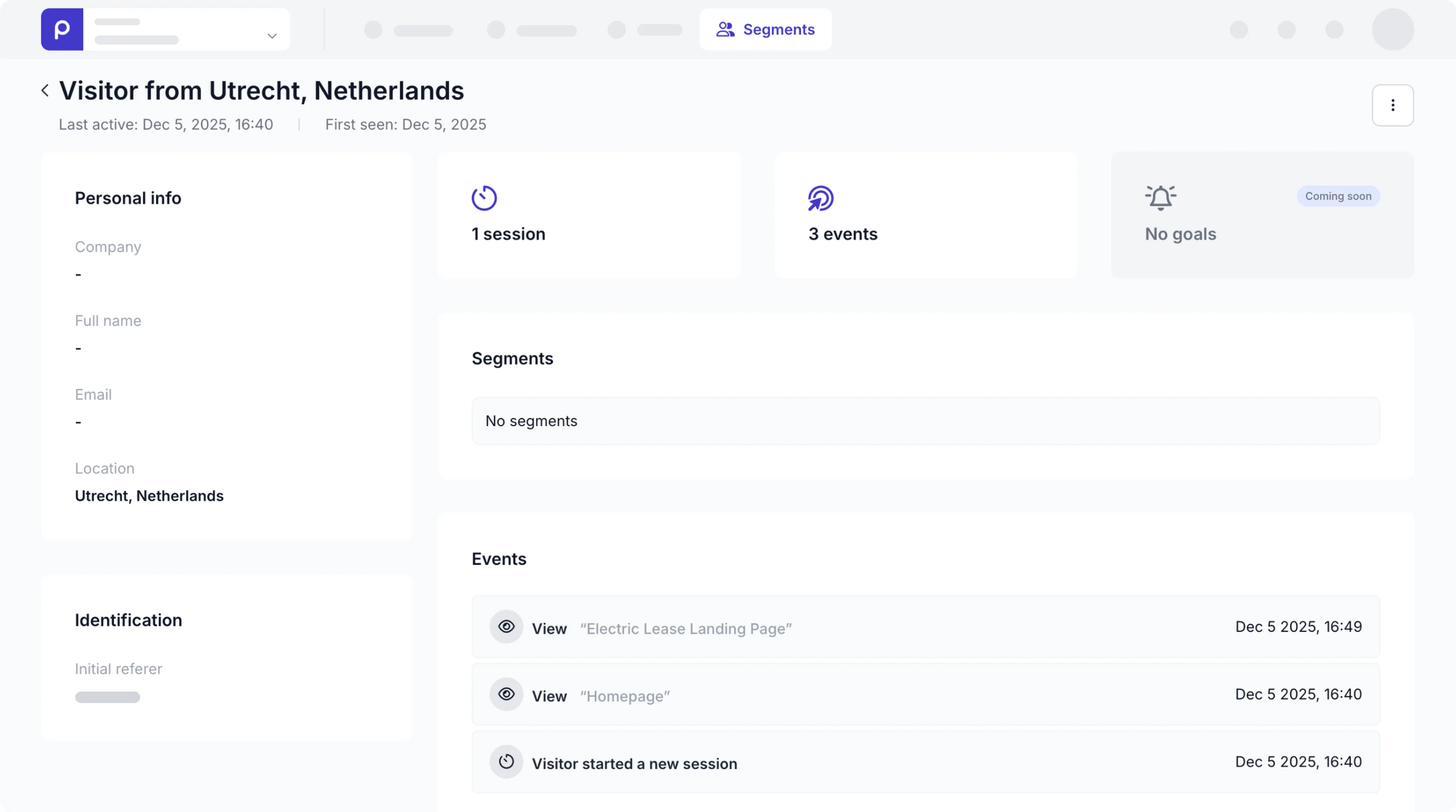
If the page view is recorded successfully you’ll see a recent visitor in the All visitors list.
-
Click to open this visitor and you should see the View event on the Homepage similar to the image below.
Congratulations! You’ve successfully enabled Prepr tracking in your Nuxt front end, and started collecting page view events. Now, you’re ready to add A/B testing and personalization to your website.