Typeform
Follow this guide to learn how to embed the Typeform templates in your web application.
Introduction
The Prepr integration with Typeform , an online form-building platform, lets you reference your form templates right inside Prepr. As a result, editors can easily search, preview, and add interactive web forms in content items.
You can make Typeform templates avaiable in content items by following the steps below.
Activate Typeform integration for form content
Activate Typeform integration
If you need to activate the integration for all environments in your organization, go to the icon in your organization.
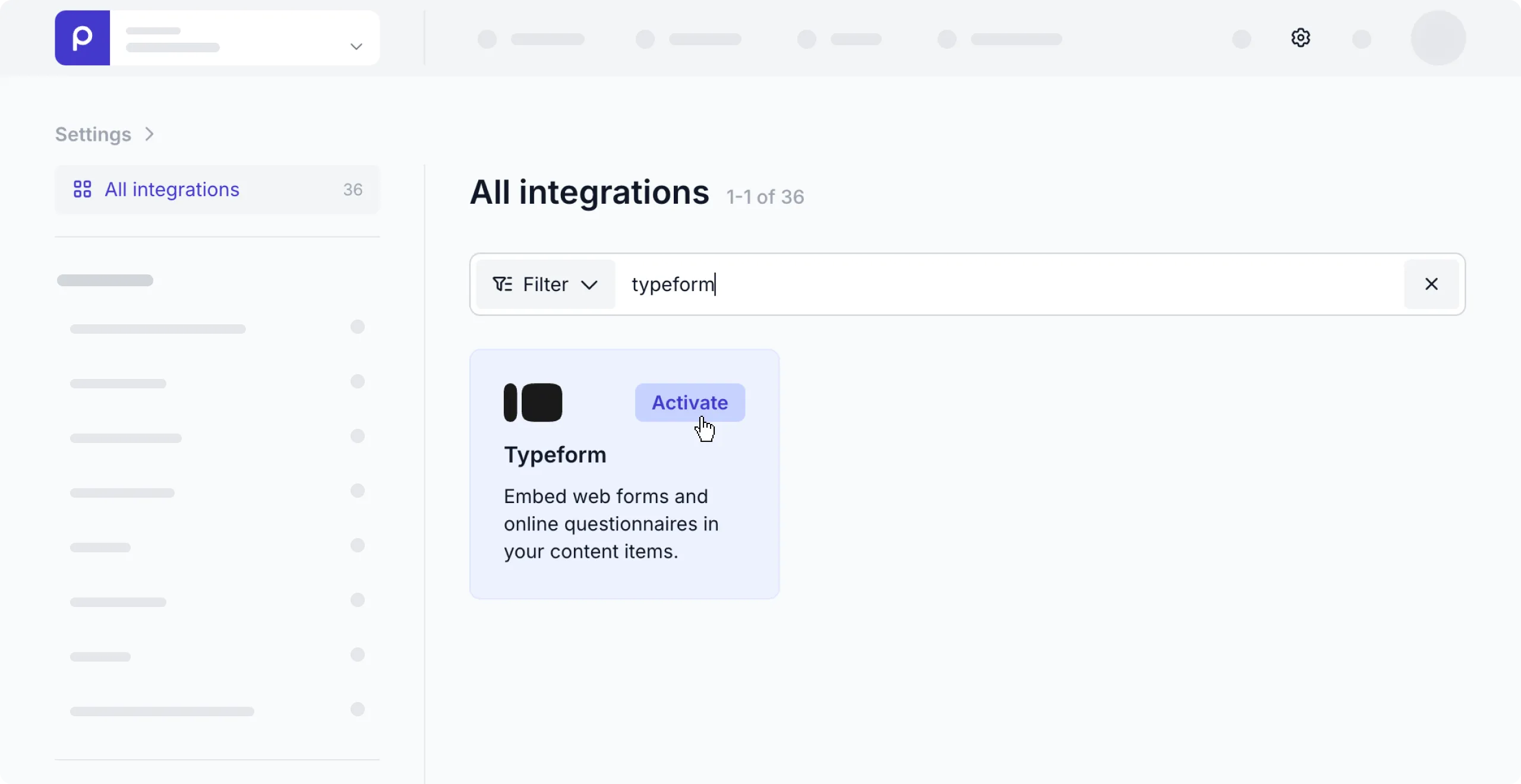
Click the icon and choose the Integrations option to view all available integrations. Go to the Typeform card and click the activate button.
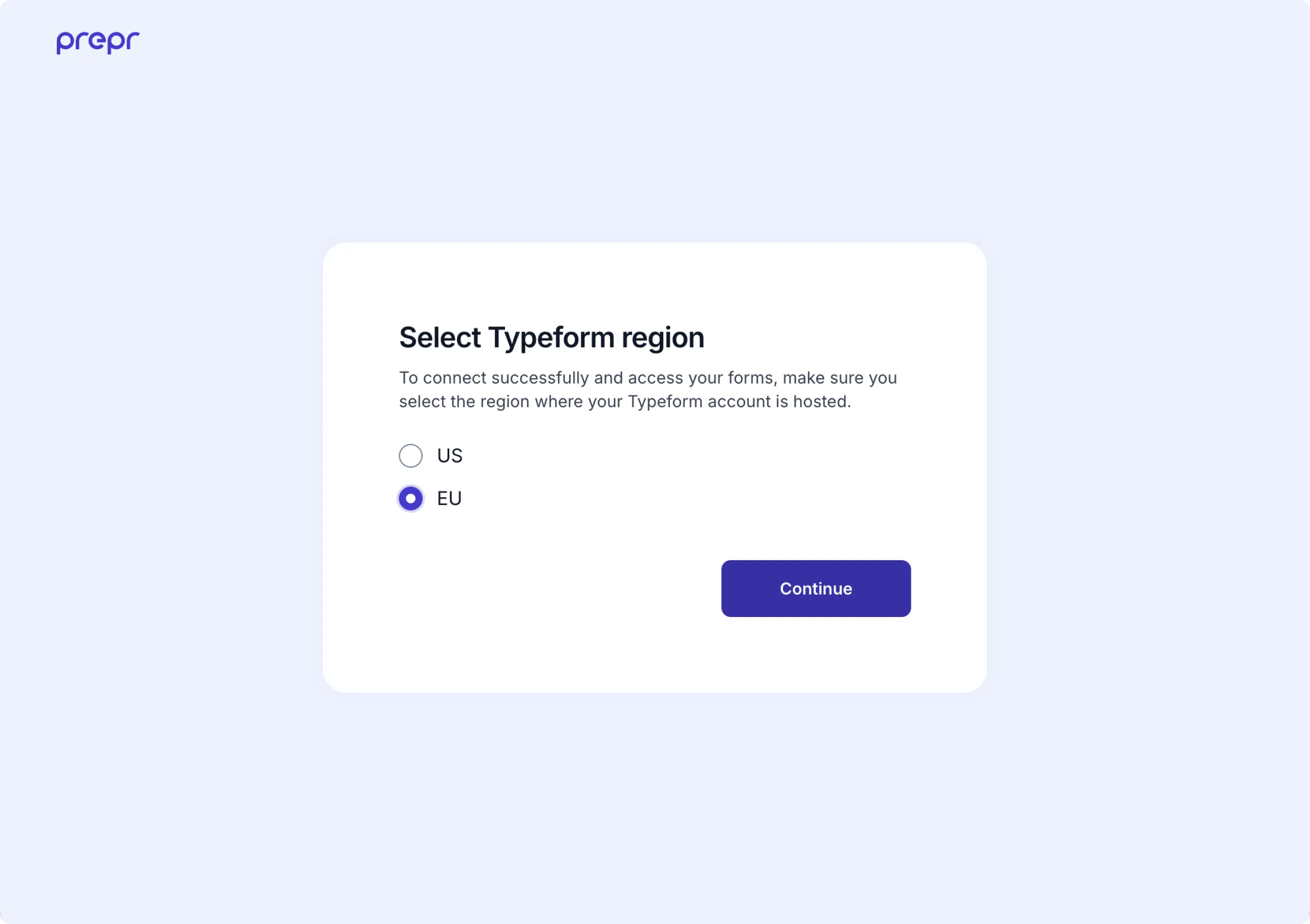
Choose the region where your Typeform account is hosted and click the Continue button.
If you’re not yet logged into your Typeform account, a dialog box will prompt you to log into your Typeform account. Once logged in, click the Accept button to allow Prepr to retrieve existing forms in your Typeform account.
Add Form field to Schema
Once the Typeform integration is activated, the Form field type becomes available for models and components. To allow content editors to include Typeform templates in their content items, follow the steps below:
-
Go to the Schema page and click the model or component for the content items that will include Typeform templates.
-
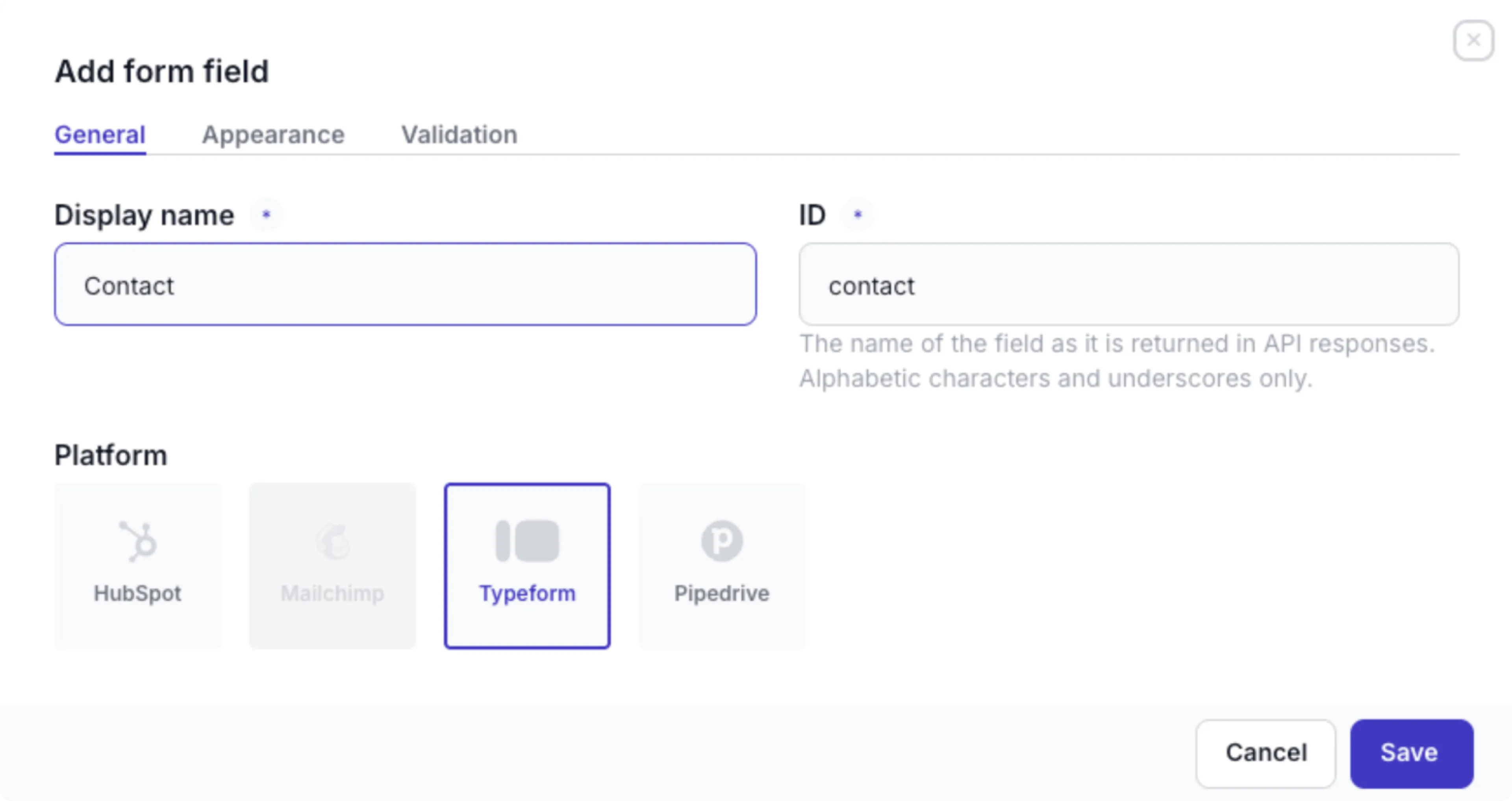
Click or drag the Form field type to add the form field to the model or component.
-
Enter a Display name for and choose Typeform as the platform.
-
Instead of a field in the model or component, you can also update the Dynamic content field settings to enable the Remote sources and forms content type and check the Typeform option to include the form in a Dynamic content field.
Add forms to your content item
Once you’ve added a form field to a model or component or enabled the form content type on a dynamic content field, you can choose a specific Typeform template in the related content item as follows:
- Go to the Content tab and click the desired content item from the list.

- Go to the field matching the Display name of the form field, click the Add Typeform form link, search and choose a form from the list. You can preview the form by clicking the icon next to the form name.
- Publish the content item to complete the setup.
Retrieve the Typeform templates using the API
Now that you’ve added forms to the content item, you can retrieve the corresponding data using the API. Check out the example code snippets below:
QUERY
query {
 Page (id: "2a5a1715-cecf-4ba0-bb7c-d59ed0a7f014") {

   # The API ID of a text field in the Page content item
   title

   # stack field that includes the Contact component
   content {
     __typename
     ... on Contact {
       # The API name of the Typeform form field
       contact {
         # The Typeform ID
         _id
       }
     }
   	}
 }
}That’s it. With this result, you have all the data to include the form from Typeform in your web application. In addition, Prepr will synchronize your remote content automatically to keep it up to date.