Make your Nuxt project dynamic
This guide shows you how to connect an existing Nuxt project to Prepr to retrieve and show Acme Lease demo content.
Connect your Nuxt website to Prepr
The steps below continue from the previous section, Set up a Nuxt project. If you don’t yet have a Nuxt website with static pages, follow the steps in this section first. Otherwise, let’s get started.
Add the Prepr API URL
Your Nuxt website retrieves content from the Prepr GraphQL API. The API URL includes an access token, so you’ll store it in an environment variable that is only available on the server.
-
Create a
.envfile in the root directory of your project and add the API URL like this:./.envNUXT_PREPR_GRAPHQL_URL=<YOUR-PREPR-GRAPHQL-URL> -
Replace the placeholder value
<YOUR-PREPR-GRAPHQL-URL>with the API URL of an access token from Prepr. Get an access token by logging into your Prepr account:
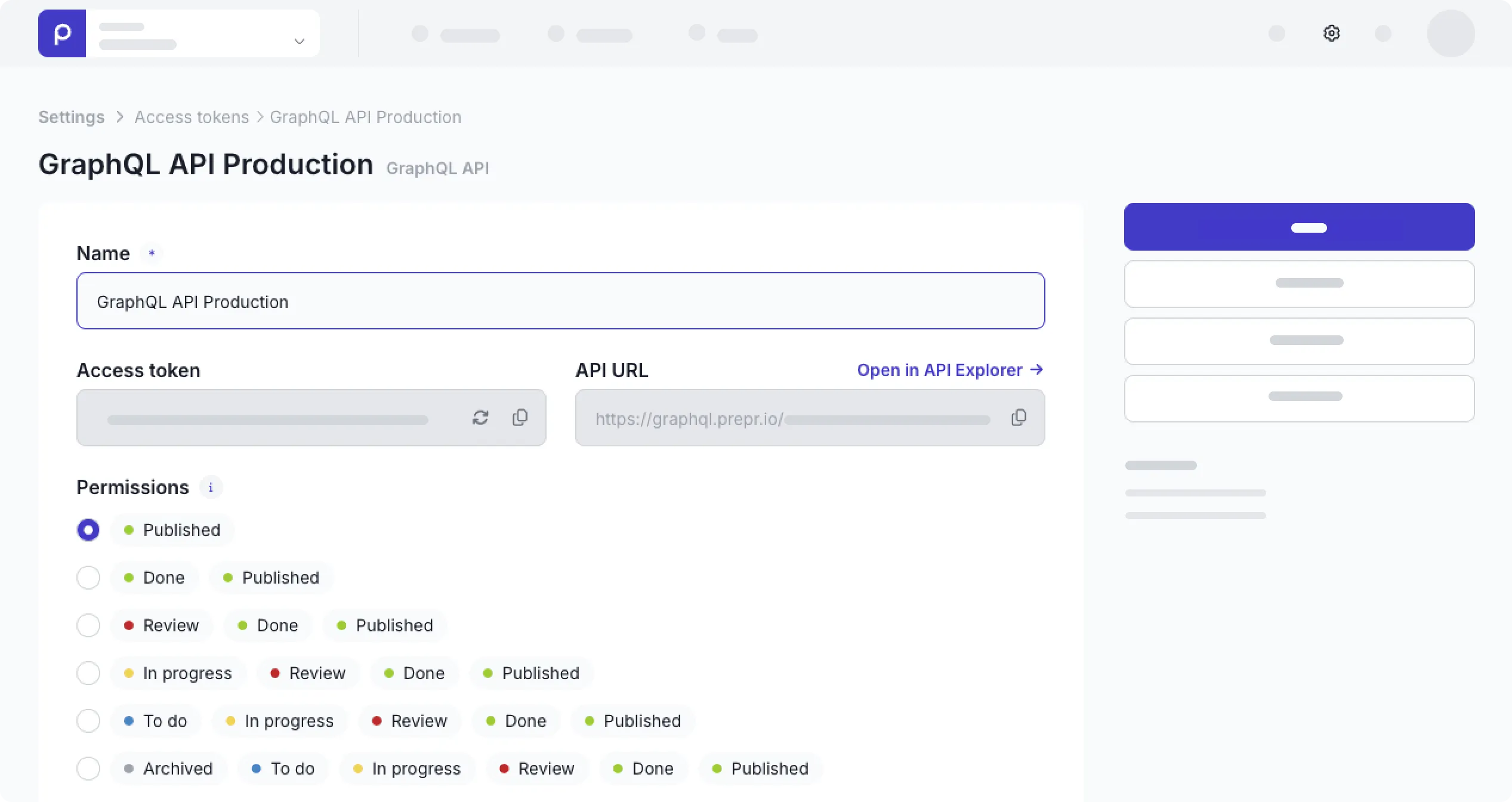
a. Click the icon and choose the Access tokens option to view all the access tokens.
b. Click to open the GraphQL Production access token, and copy the API URL to only retrieve published content items on your site for now.
c. Paste the copied API URL in your.envfile.
Use the GraphQL Production access token to request published content items for your live app and use the GraphQL Preview token to make a preview of unpublished content items for your content editors.
-
Add the runtime configuration, highlighted below, to your
nuxt.config.ts../nuxt.config.tsimport tailwindcss from '@tailwindcss/vite' // https://nuxt.com/docs/api/configuration/nuxt-config export default defineNuxtConfig({ compatibilityDate: '2025-07-15', devtools: { enabled: true }, modules: ['@nuxt/fonts'], css: ['~/assets/css/main.css'], // @nuxt/fonts finds the Ubuntu font in main.css and self-hosts it. fonts: { defaults: { weights: [400, 700] }, }, vite: { plugins: [tailwindcss()], }, runtimeConfig: { // Server-only: set with NUXT_PREPR_GRAPHQL_URL in .env or on your host. preprGraphqlUrl: '', }, })
Nuxt fills runtime config values from environment variables that start with NUXT_, so NUXT_PREPR_GRAPHQL_URL sets preprGraphqlUrl.
Because the key isn’t inside public, the value is only available on the server and never ends up in the browser.
-
Execute the following command to restart the server, if needed, and refresh your page in the browser.
npm run dev
If your website runs without errors, then the setup above was done correctly. Before we create a query to retrieve content, let’s follow some best practices for TypeScript and install a GraphQL code generator.
Install a code generator
In this step, you’ll install a GraphQL code generator to generate TypeScript types automatically for your queries and keep these up to date with any schema changes. Check out the TypeScript best practices doc for more details.
-
Stop the localhost website server (
CTRL-C) if it’s running and execute the following commands in your terminal:npm install graphql @graphql-typed-document-node/core npm install -D @graphql-codegen/cli @graphql-codegen/client-preset @graphql-codegen/introspection dotenv -
Once done, create a new file,
codegen.tsin the root of your project. Update it with the code below../codegen.tsimport 'dotenv/config' import type { CodegenConfig } from '@graphql-codegen/cli' const config: CodegenConfig = { overwrite: true, schema: process.env.NUXT_PREPR_GRAPHQL_URL, documents: ['app/queries/**/*.graphql'], generates: { 'app/gql/': { preset: 'client', presetConfig: { fragmentMasking: false }, // Nuxt's tsconfig enables verbatimModuleSyntax. config: { useTypeImports: true }, }, './graphql.schema.json': { plugins: ['introspection'] }, }, } export default config -
To complete the codegen installation, update and add the highlighted lines below to the
scriptsin yourpackage.json../package.json{ "name": "nuxt-complete-starter", ... "scripts": { "build": "npm run codegen && nuxt build", "dev": "nuxt dev", "generate": "nuxt generate", "preview": "nuxt preview", "postinstall": "nuxt prepare", "codegen": "graphql-codegen --config codegen.ts" }, ... }
Add a GraphQL query
Once the GraphQL code generator is installed, you can add a query to get the content for your home page from Prepr.
If you’re using preloaded demo data in your Prepr environment as mentioned in the Prerequisites, you should have a Homepage content item like in the image below. The Homepage has all the elements of the page in a Stack field. The stack makes it easy for an editor to set up their page content in a flexible structure for the front end.
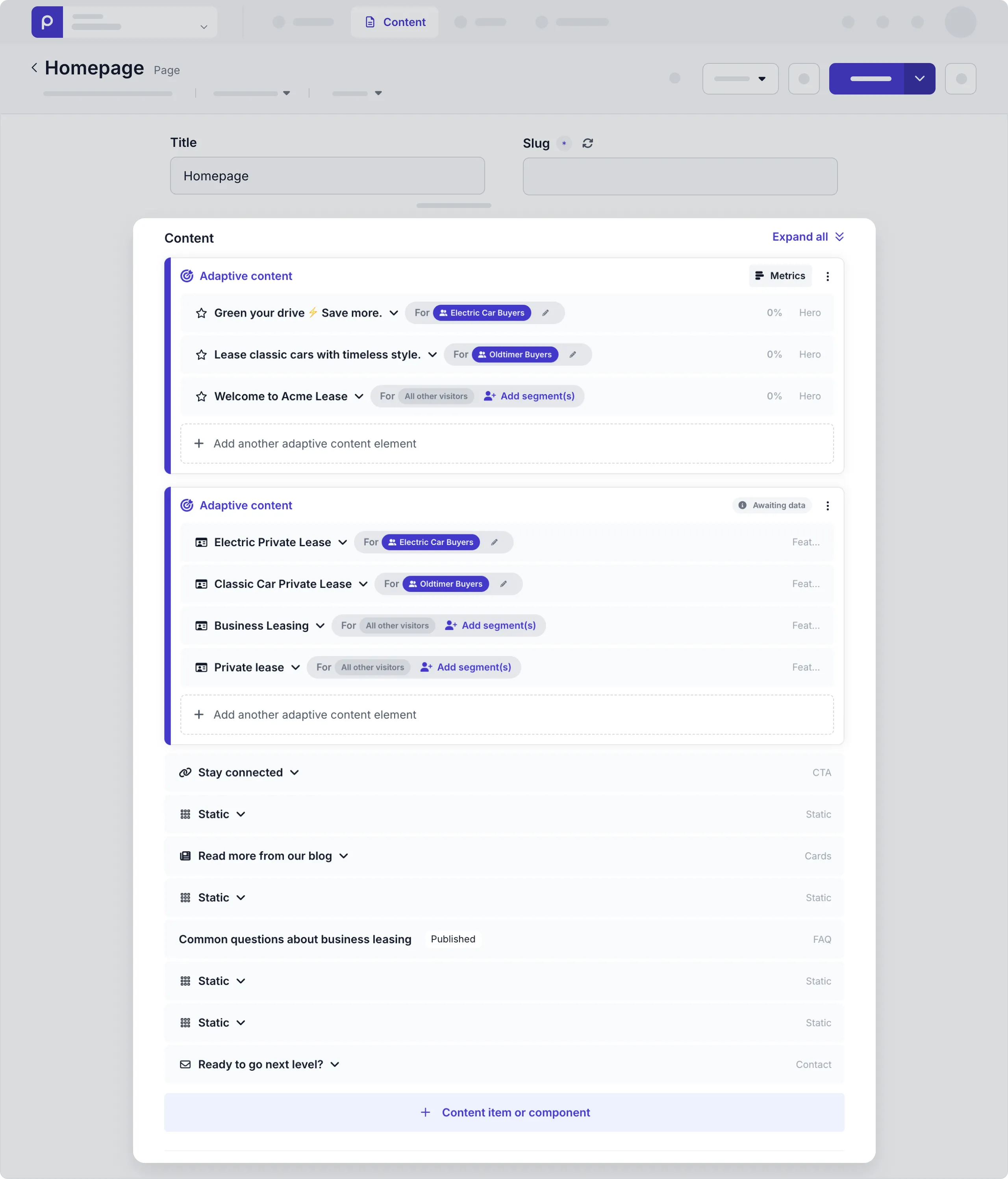
You can see that the hero and feature sections are in adaptive content blocks. We’ll explain that in more detail in the upcoming personalization chapter.
Follow the steps below to add a query to retrieve the id, title, slug, and a stack containing the hero and feature sections with their own fields:
-
Create a
queriesfolder in theappdirectory of your project and create a file namedget-page-by-slug.graphql. -
Add the following queries to retrieve a page by its slug:
You’ll notice that we’ve created fragment queries in a fragments folder.
Fragments in GraphQL are a way to define a set of fields that can be reused.
Page query
 query GetPageBySlug($slug: String) {
    Page(slug: $slug) {
        title
        _id
        content {
            __typename
            ... on Hero {
                ...Hero
            }
            ... on Feature {
                ...Feature
            }
        }
    }
}You can create and test GraphQL queries using the Apollo explorer from Prepr. Open the API Explorer from the Homepage content item or from your access token page.
Generate TypeScript types
-
Now that the queries are created, generate the TypeScript types by running the following command in the terminal:
npm run codegen -
If the command is successful you’ll see a new file called
graphql.tsin theapp/gqlfolder. Check out the TypeScript doc for more details.
Fetch page content
To view the Prepr content in your website, you need to fetch the page and show its elements. As mentioned previously, the page has elements in a Stack field. You’ll show two components, a Hero section and Feature sections in the stack.
-
Create a
composablesfolder in theappdirectory and add a file calledusePrepr.tswith the code below. This composable sends a query to the Prepr GraphQL API and returns the typed result../app/composables/usePrepr.tsimport { print } from 'graphql' import type { TypedDocumentNode } from '@graphql-typed-document-node/core' // Runs a Prepr GraphQL query during server-side rendering. The result reaches // the browser in the Nuxt payload, so the GraphQL URL stays on the server. export function usePrepr<TResult, TVariables>( key: string, document: TypedDocumentNode<TResult, TVariables>, variables: TVariables, ) { return useAsyncData(key, async (nuxtApp) => { const { data, errors } = await $fetch<{ data: TResult, errors?: { message: string }[] }>(nuxtApp.$config.preprGraphqlUrl, { method: 'POST', body: { query: print(document), variables }, }) if (errors?.length) throw createError(errors[0]!.message) return data }) }
usePrepr wraps Nuxt’s useAsyncData.
The query runs on the server when the page is rendered, and Nuxt sends the result to the browser along with the page, so the browser never calls the Prepr API itself.
Like components, Nuxt auto-imports everything in the composables folder.
-
Replace the code in
app/pages/[...slug].vuewith the code below. The page gets the slug from the URL, queries the matching page from Prepr and shows a Hero or Feature section for each element in the stack../app/pages/[...slug].vue<script setup lang="ts"> import { GetPageBySlugDocument } from '~/gql/graphql' const route = useRoute() // The home page has no slug in the URL; in Prepr its slug is '/'. const slug = (route.params.slug as string[] | undefined)?.join('/') || '/' const { data } = await usePrepr(`page-${slug}`, GetPageBySlugDocument, { slug }) if (!data.value?.Page) { throw createError({ statusCode: 404, statusMessage: 'Page not found' }) } const page = data.value.Page </script> <template> <template v-for="(element, index) in page.content" :key="index"> <HeroSection v-if="element.__typename === 'Hero'" :item="element" /> <FeatureSection v-else-if="element.__typename === 'Feature'" :item="element" /> </template> </template> -
Update your components to display the data from Prepr.
Hero section
./app/components/HeroSection.vue<script setup lang="ts"> import type { HeroFragment } from '~/gql/graphql' defineProps<{ item: HeroFragment }>() </script> <template> <section class="bg-primary-50"> <div class="mx-auto max-w-8xl p-spacing flex flex-col items-center md:flex-row gap-8 py-10 lg:py-20"> <div class="basis-6/12"> <h1 class="text-mb-5xl lg:text-7xl text-secondary-700 font-medium break-words text-balance"> {{ item.heading }} </h1> <p class="text-secondary-500 lg:text-lg mt-4 lg:mt-6 text-balance"> {{ item.sub_heading }} </p> <div class="flex gap-4 mt-8 xl:mt-10"> <div> <a href="#"><Button>{{ item.buttons[0]?.text }}</Button></a> </div> </div> </div> <div class="basis-6/12 relative flex justify-end items-center"> <div class="z-10 flex items-center aspect-[20/17] w-9/12 overflow-hidden justify-center absolute top-1/2 left-1/2 transform -translate-x-1/2 -translate-y-1/2"> <img v-if="item.image?.url" :src="item.image.url" alt="Hero image" width="720" height="360" class="object-cover rounded-2xl"> </div> <div class="w-9/12 aspect-[20/17] bg-primary-100 rounded-3xl right-0 top-0 z-0"></div> </div> </div> </section> </template> -
When the page doesn’t exist in Prepr, the page code throws a 404 error. Create an
app/error.vuefile to show the error with the navigation bar../app/error.vue<script setup lang="ts"> import type { NuxtError } from '#app' defineProps<{ error: NuxtError }>() </script> <template> <NavBar /> <div class="mx-auto max-w-8xl p-spacing py-20 text-center text-secondary-700"> <h1 class="text-5xl font-medium">{{ error.statusCode }}</h1> <p class="mt-4">{{ error.statusCode === 404 ? 'This page could not be found.' : 'Something went wrong.' }}</p> </div> </template> -
Restart the server with
npm run devand refresh your page in the browser.
Now when you view the website on your localhost, you’ll see something like the image below:
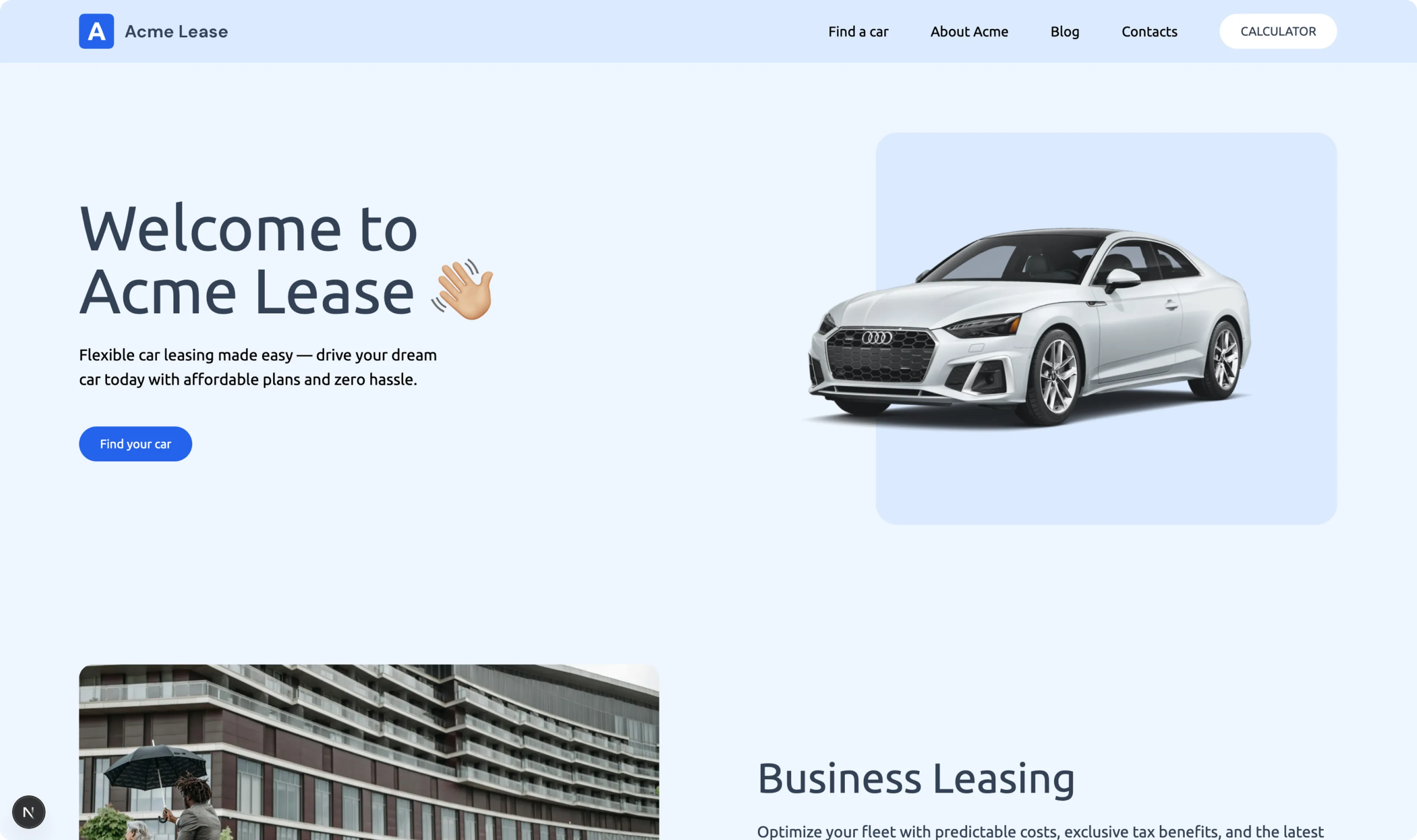
Congratulations! You have successfully connected your front end to Prepr to make your website dynamic. Continue your journey to the next section to set up data collection.