ActiveCampaign
In this guide, you’ll learn how to activate the ActiveCampaign integration in Prepr CMS. This integration allows content editors to embed ActiveCampaign forms in their content items.
Introduction
ActiveCampaign is an all-in-one marketing and sales automation platform.
Activating ActiveCampaign integration
Activate ActiveCampaign in Prepr
To connect Prepr to ActiveCampaign, you first need to get the API key and URL from your ActiveCampaign account. Check out the ActiveCampaign help guide for more details.
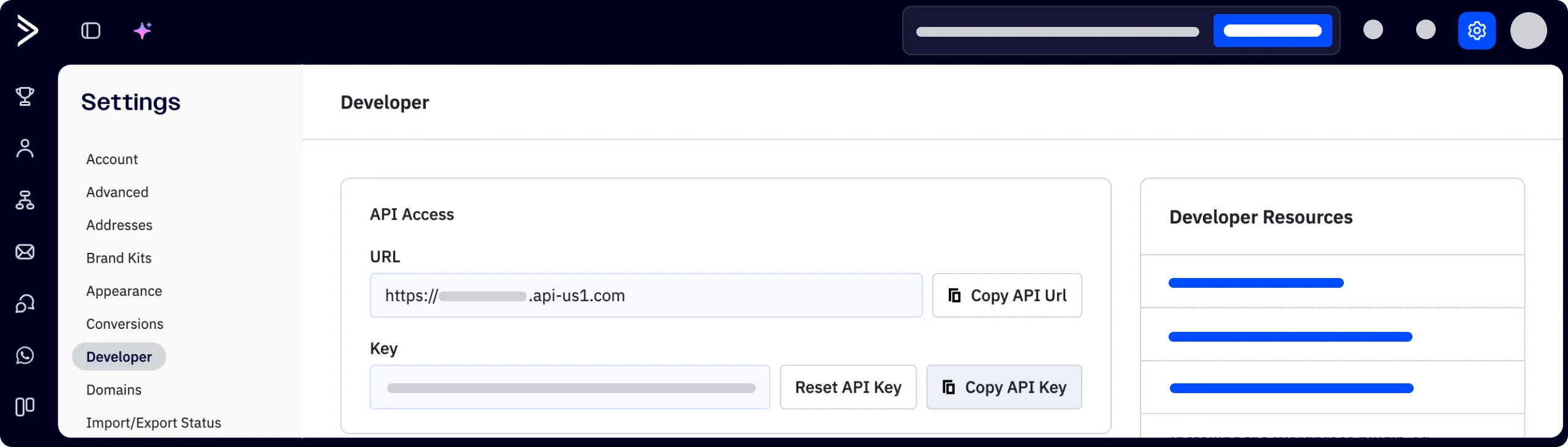
Once you have the API credentials, you can activate the ActiveCampaign integration in Prepr by logging in to your Prepr account.
If you need to activate the integration for all environments in your organization, go to the icon in your organization.
- Click the icon, and choose the Integrations option to view all available integrations.
- Then go to the ActiveCampaign card and click the Activate button.
- Paste the API key and URL values you copied from your ActiveCampaign account and click the Save button.
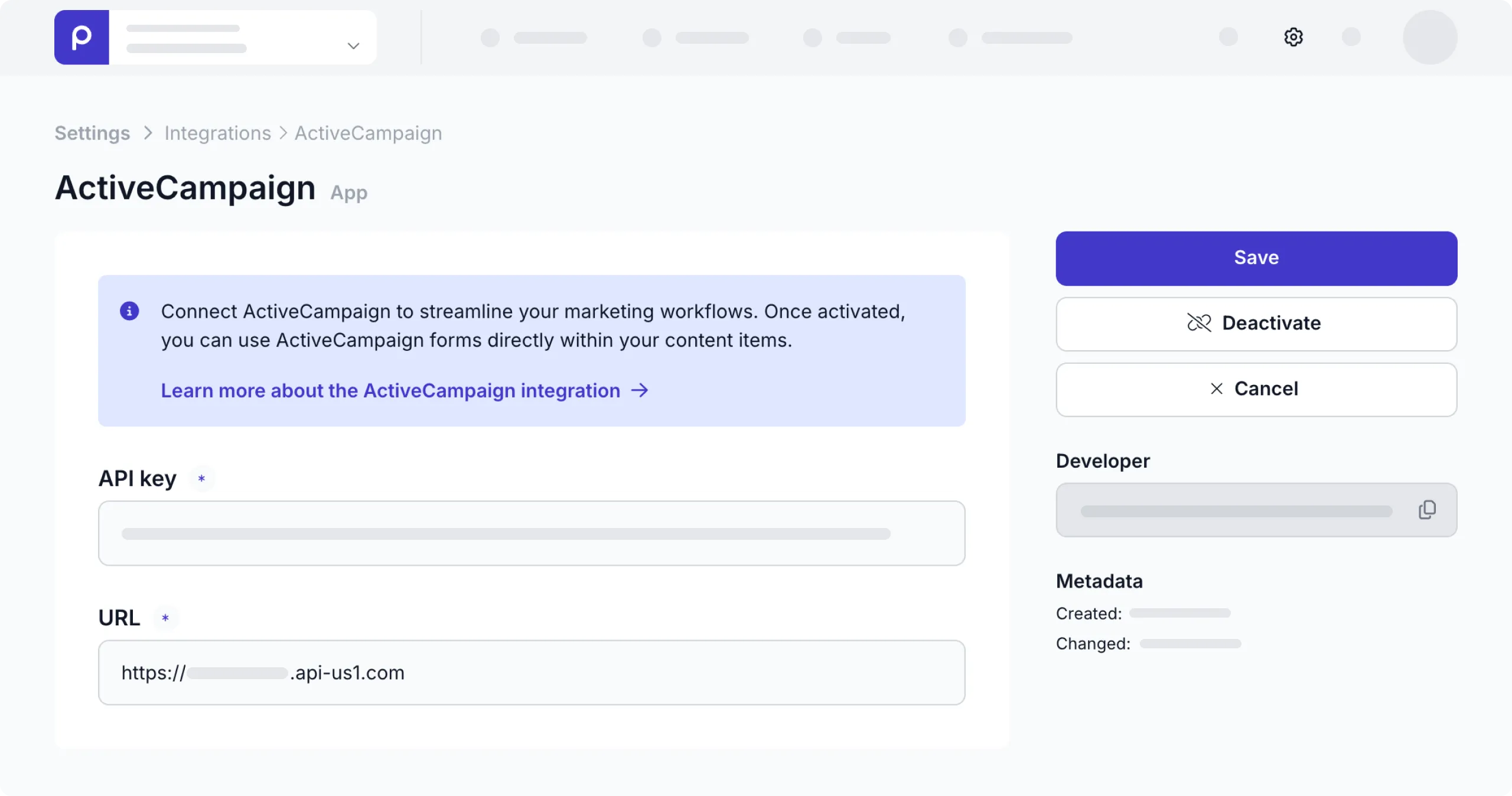
That’s it. You’re connected Prepr to ActiveCampaign making it possible to choose ActiveCampaign for form fields.
Make ActiveCampaign forms available in content items
Once the ActiveCampaign integration is activated, the form field becomes available for models and components. To allow content editors to include ActiveCampaign forms in their content items, follow the steps below:
-
Go to the Schema page and click the model or component for the content items that will include ActiveCampaign forms.
-
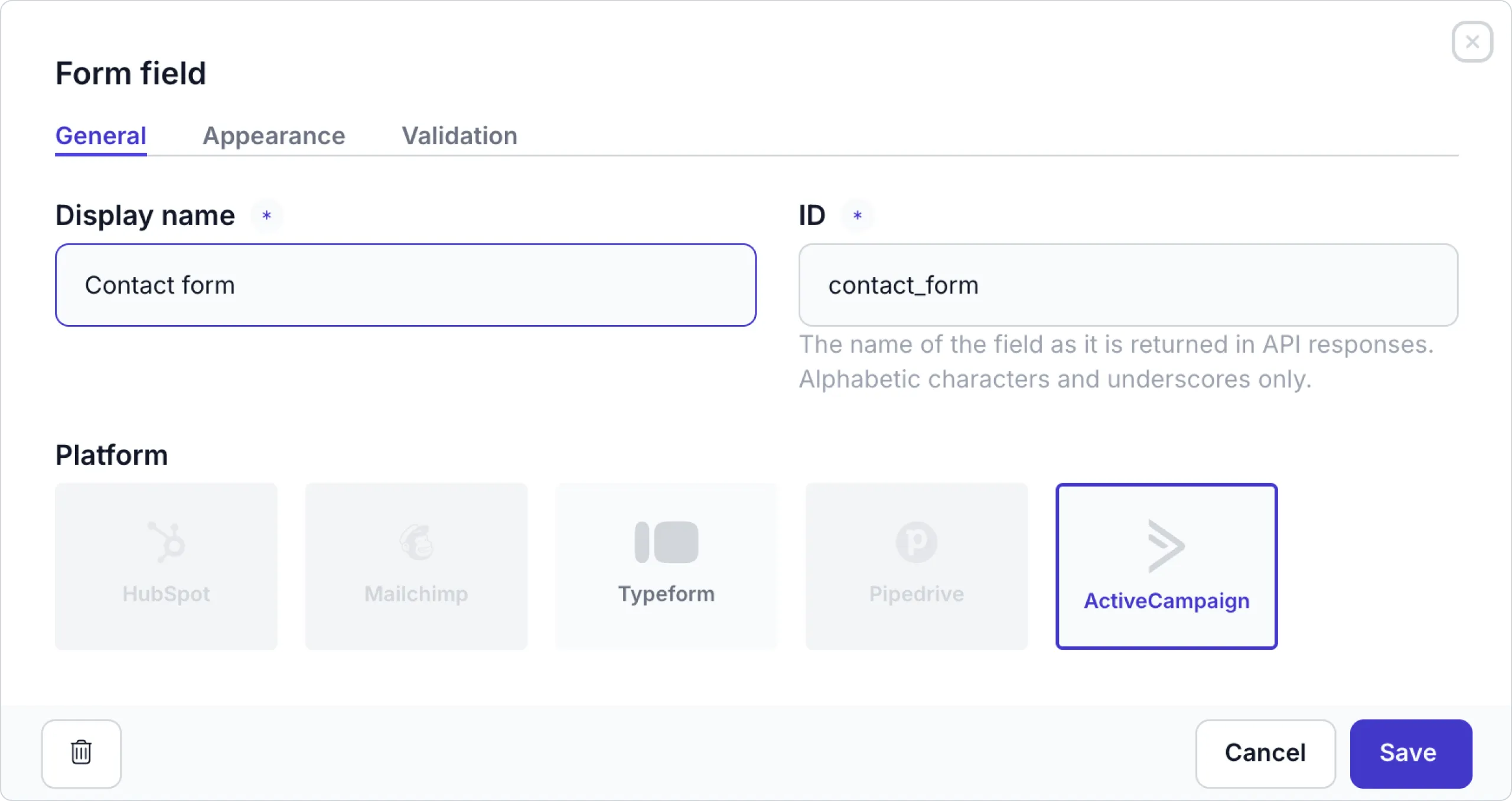
Click or drag the Form field type to add the form field to the model or component.
-
Enter a name for the form field and choose ActiveCampaign as the platform.
-
Instead of a field in the model or component, you can also update the Dynamic content field settings to enable the Remote sources and forms content type and check the ActiveCampaign option to include the form in a Dynamic content field.
That’s it. The ActiveCampaign integration is activated and content editors can now embed ActiveCampaign forms in content items.