AI-generate text for images
The AI integration automatically generates text values, such as alt text, when uploading new images.
Introduction
When you activate the Prepr image processing integration, you can choose to integrate to AI to process images. When a user uploads an image, Prepr CMS prompts AI to scan the image and the image file name to detect information and generate selected text values, such as alt text.
Activate AI generation for image text fields
Simply activate the AI integration with the following steps:
-
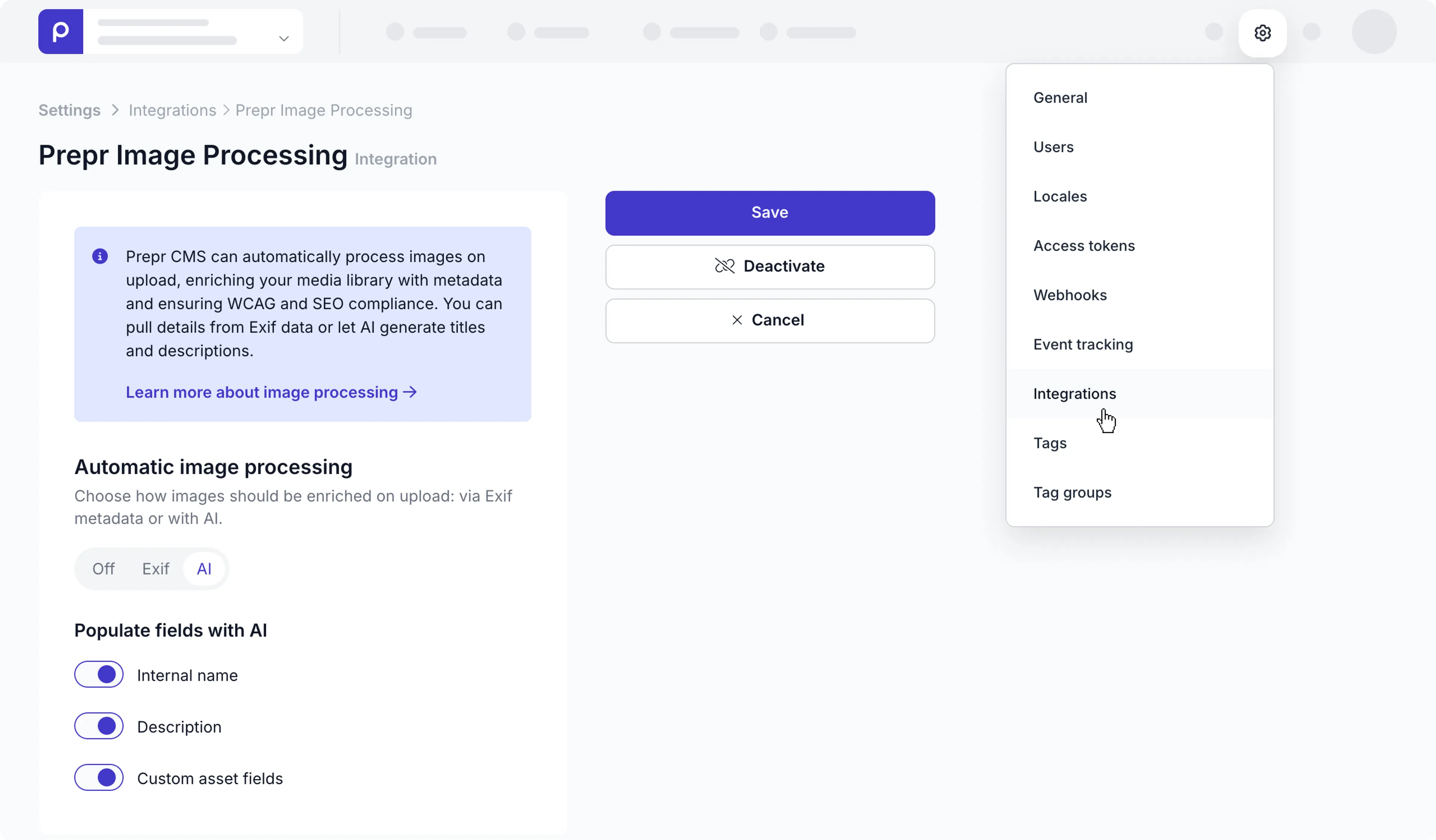
Click the icon and choose the Integrations option to view all integrations. Go to the Prepr image processing card and click the Activate button.
-
Enable the AI toggle and choose one or more of the fields listed.
- Internal name
- Description
- Custom asset fields - These include any custom text fields you added to the Asset model, like an Alt text field.
To make changes to the options, go back to the Prepr image processing card and click the Manage button to make your changes.
-
If you have any custom asset fields in the Asset model, set a prompt for each text field you want AI-generated, as follows:
- Go to the Schema page and click to open the Asset model.
- Click the text field you want AI-generated and in the dialog, click the AI tab.
- Then enable the toggle to Allow AI text generation
- Choose one of the Suggested prompts and edit it, if needed, or create your own and click the Save button.
Once the AI integration is activated and all prompts are set, editors will get generated text for any new images they upload.

The text values for previously uploaded images will remain unchanged.
If you have any questions, please contact our Support team .