SuperOffice
In this guide, you’ll learn how to activate the SuperOffice integration in Prepr CMS. This integration allows you to include SuperOffice selections in your Prepr segments allowing you to render adaptive content to known SuperOffice contacts. By activating this integration, you also allow editors to include SuperOffice forms in their content items.
Introduction
SuperOffice is a CRM used to manage customers, sales and marketing. If SuperOffice is your primary system to manage customers, visitor identification and/or forms, then you can integrate SuperOffice selections and SuperOffice forms to Prepr.
Activating SuperOffice integration
Activate SuperOffice in Prepr
You can activate the SuperOffice integration directly in Prepr by logging in to your Prepr account.
-
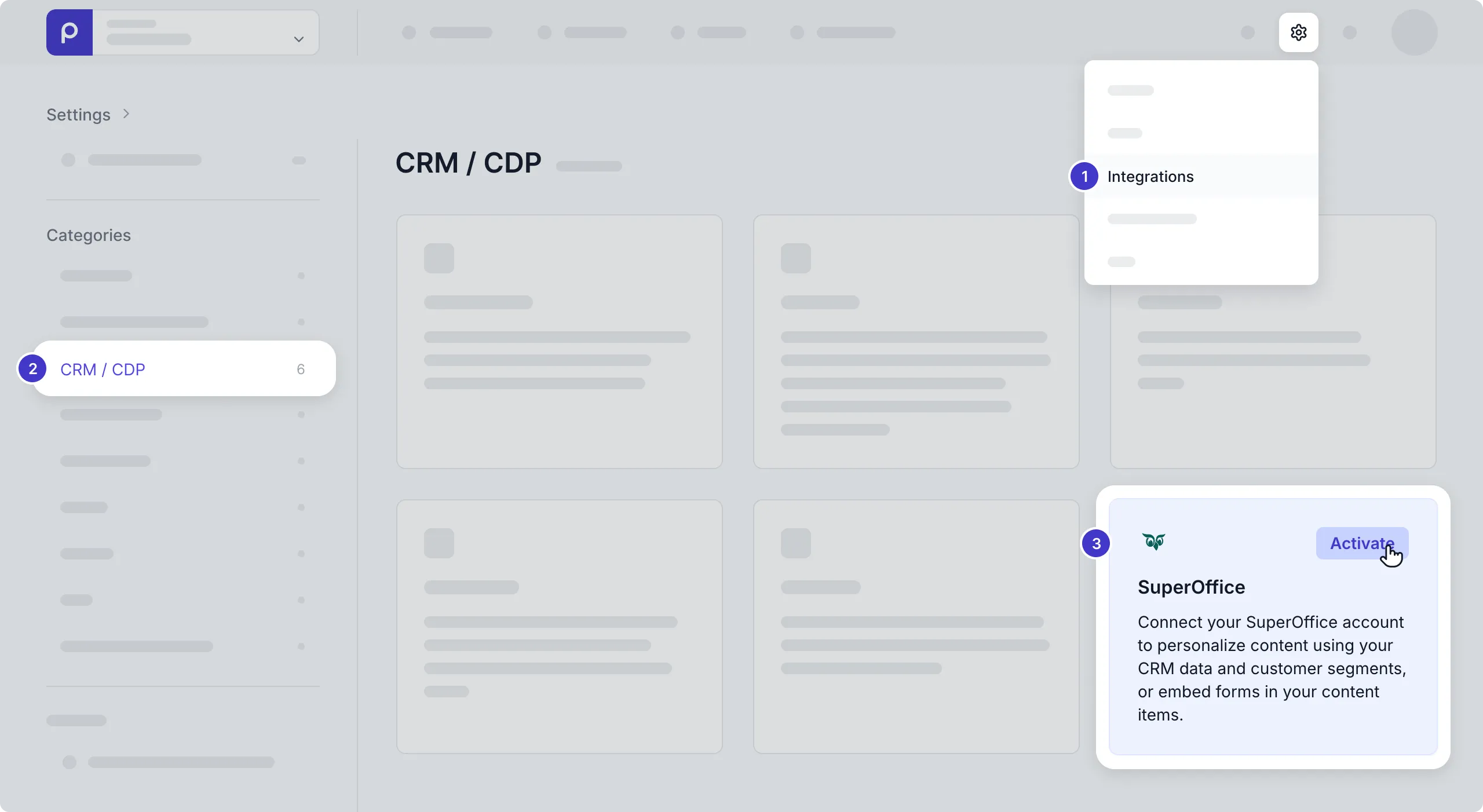
Click the icon, and choose the Integrations option to view all available integrations.
-
Then go to the SuperOffice card and click the Activate button to open the SuperOffice authentication page.
-
Log into your SuperOffice account to complete the activation.
That’s it. You’ve connected Prepr to SuperOffice. This means SuperOffice sales stages are available in your Prepr segments and you can add SuperOffice forms to your content items.
Include SuperOffice segments in Prepr segments
To include SuperOffice segments in your Prepr segments, follow the steps below:
-
Go to Segments → + Add segment.
-
In the default condition, click the view link to open the Filter options.
-
Open the SuperOffice tab and click the Sales stage link to choose the stage you want to segment by. Click Save to create the SuperOffice segment.
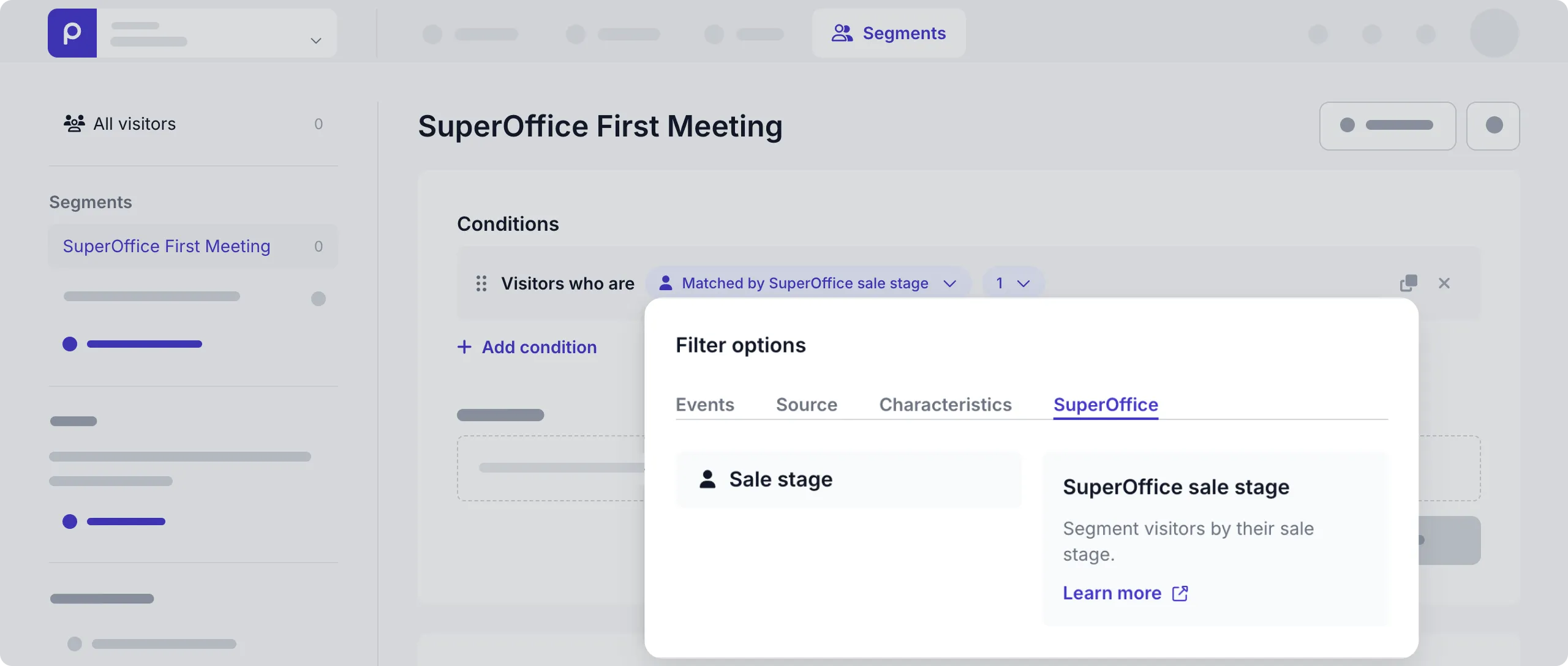
Now, the segment is available to use in adaptive content. Check out the Adaptive content doc for more details.
Make SuperOffice forms available in content items
Once the SuperOffice integration is activated, the form field becomes available for models and components. To allow content editors to include SuperOffice forms in their content items, follow the steps below:
-
Go to the Schema page.
-
Click the model or component for the content items that need to include SuperOffice forms.
-
Click or drag the Form field type to add the form field to the model or component.
-
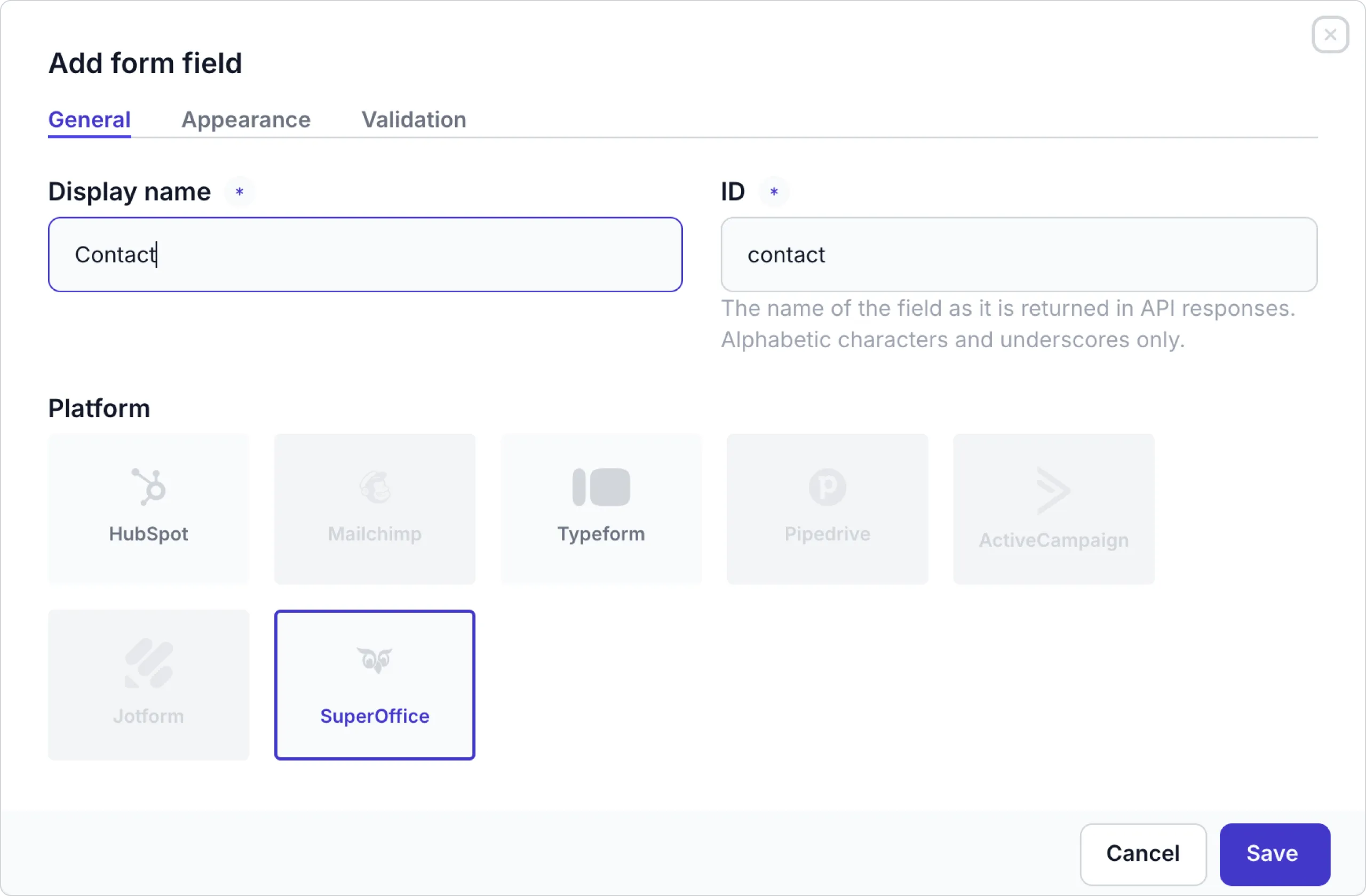
Enter a name for the form field and choose SuperOffice as the platform.
-
Instead of a field in the model or component, you can also update the Dynamic content field settings to enable the Remote sources and forms content type and check the SuperOffice option to include the form in a Dynamic content field.
That’s it. The SuperOffice integration is activated and you can create adaptive content for your SuperOffice contacts and include SuperOffice forms in your content items.