Authorization
In this article, you’ll learn how to access the Prepr MCP server.
Prepr MCP server URL
You need to specify the Prepr MCP server URL to connect to any agent.
https://mcp.prepr.io
Connecting with OAuth
OAuth is a secure, industry-standard protocol that allows you to authorize one app or service to sign in to another.
When you connect your agent to the Prepr MCP server, you are automatically redirected to log into your environment. With this protocol, your existing Prepr user role permissions apply when making AI requests. For example, if the Delete permission is disabled for your user role, the agent cannot delete content items.
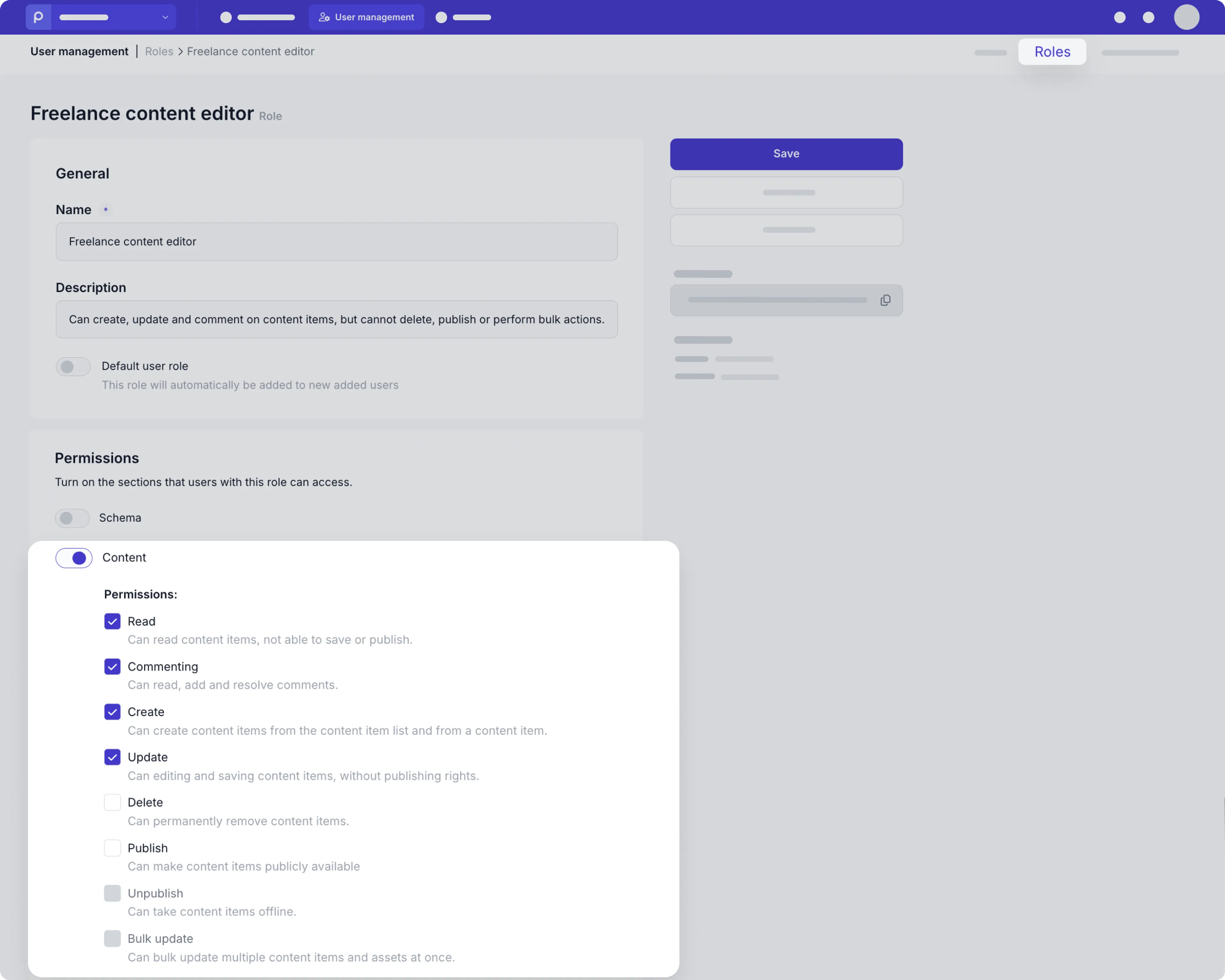
Even if your role permissions allow certain actions, the MCP server permissions for the environment can restrict them. Check out the Managing MCP server permissions section below for more details.
Connecting with MCP token
If your preferred AI client does not support OAuth for remote MCP connections, then you need to request an MCP server token to connect to the Prepr MCP server.
To request an MCP token, contact Prepr Support and specify the Prepr environment you need access to.
When connecting your AI client to the Prepr MCP server, in addition to providing the URL, you need to add an Authorization header:
- Prepr MCP server URL:
https://mcp.prepr.io - Authorization header:
Authorization: Bearer YOUR_ACCESS_TOKEN
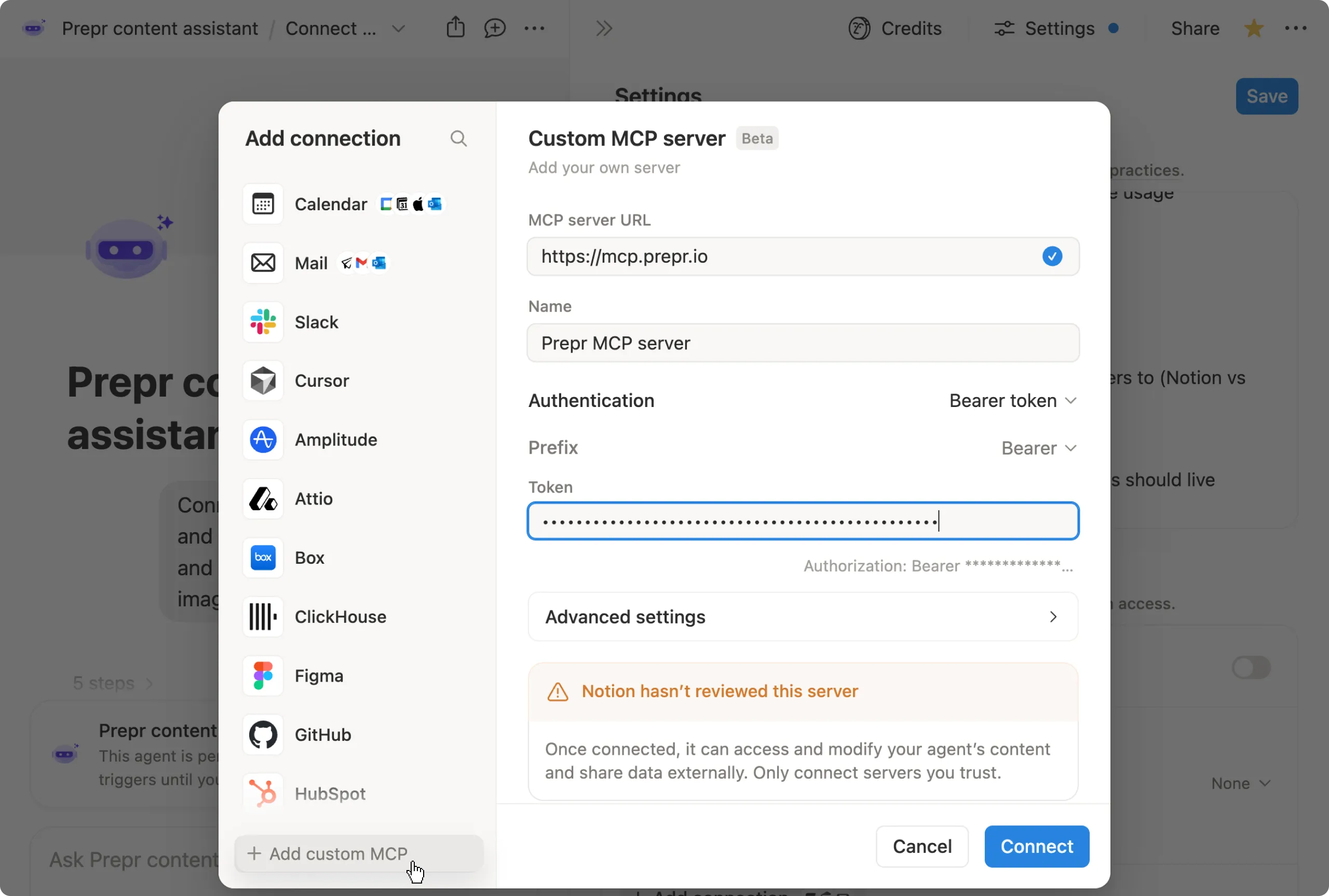
Managing MCP server permissions
In some cases, it’s necessary to restrict certain actions for all MCP server requests made to an environment. For example, you can disable access to delete assets in your production environment so that no AI agent can delete assets there, while still allowing asset deletion in your development environment.
To update the MCP server permissions for an environment, follow the steps below.
-
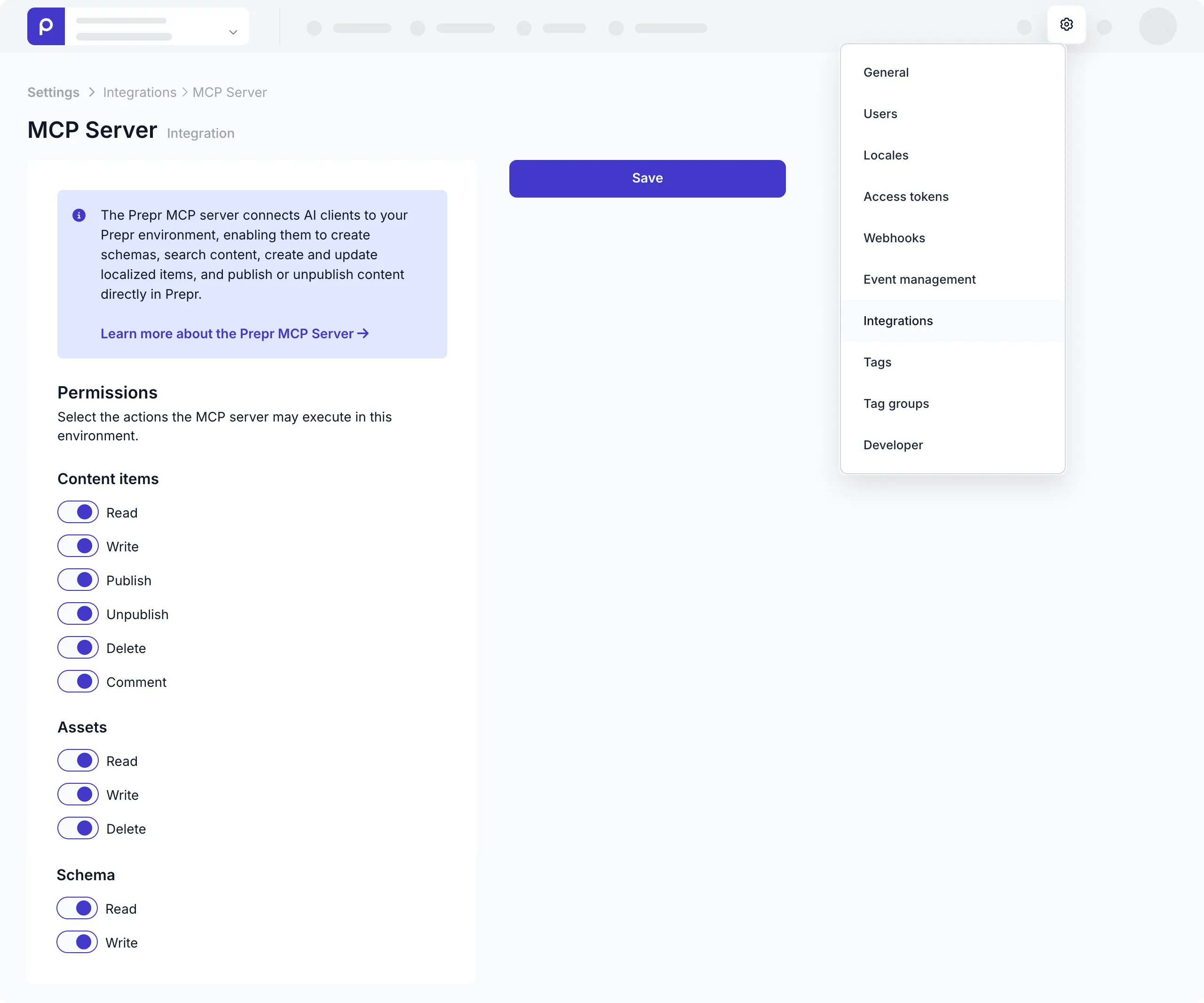
Go to Settings → Integrations and click the MCP Server card.
-
Enable or disable the permissions that MCP server requests are allowed to use in this environment and click the Save button.
When an AI agent makes a request through the MCP server, both the MCP server permissions of the environment and the user role permissions are checked. The stricter permission always applies.
For example, a developer’s user role allows them to update the schema. If Schema → Write access is disabled in the MCP server permissions of the production environment, the developer cannot update the schema of that environment through the MCP server.
What’s next?
To see which MCP tools are available and what actions they support, check the Available tools and actions guide.