AI text assistant features
This article details the setup of the available AI assistant features for creating, editing and reviewing text in content items.
Introduction
Learn how to set up the following AI text assistant features to support editors with creating, updating and reviewing content:
- AI translation
- Custom prompting for text generation and text optimization
- AI text optimization with fixed list of actions
- AI text generation with predefined prompts
- AI check for SEO values
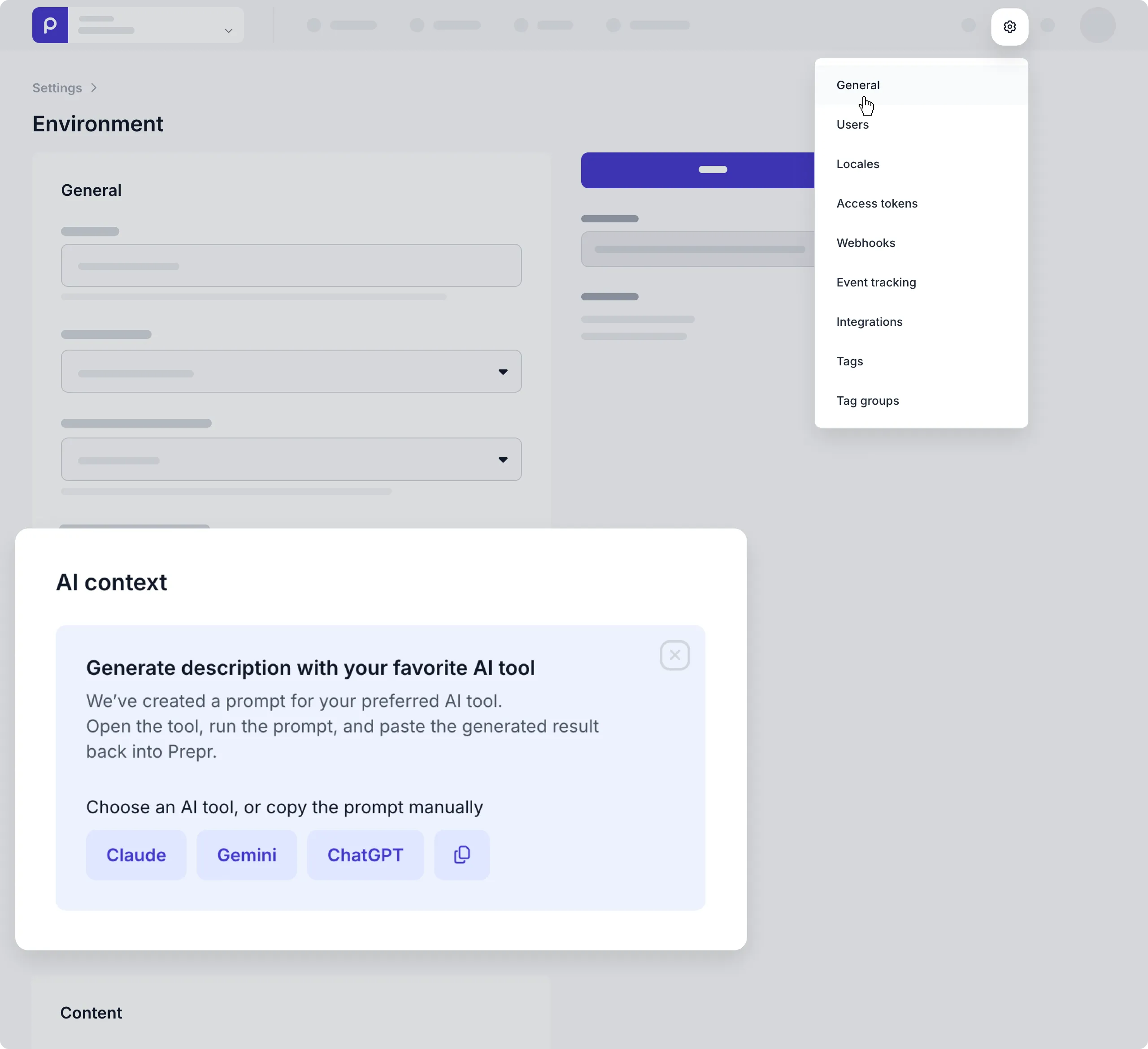
To get the most optimal results from AI requests, make sure to define a detailed context description in the environment settings.
Translating content items
Content editors can automatically create high-quality first drafts of content items in a chosen language using AI.

This feature lightens the workload for content editors who need to create translated copies of a content item. This AI feature is enabled by default for all models and all text fields.
To disable AI translation for specific fields, follow the steps below.
-
In the Schema page, choose the model you want to update.
-
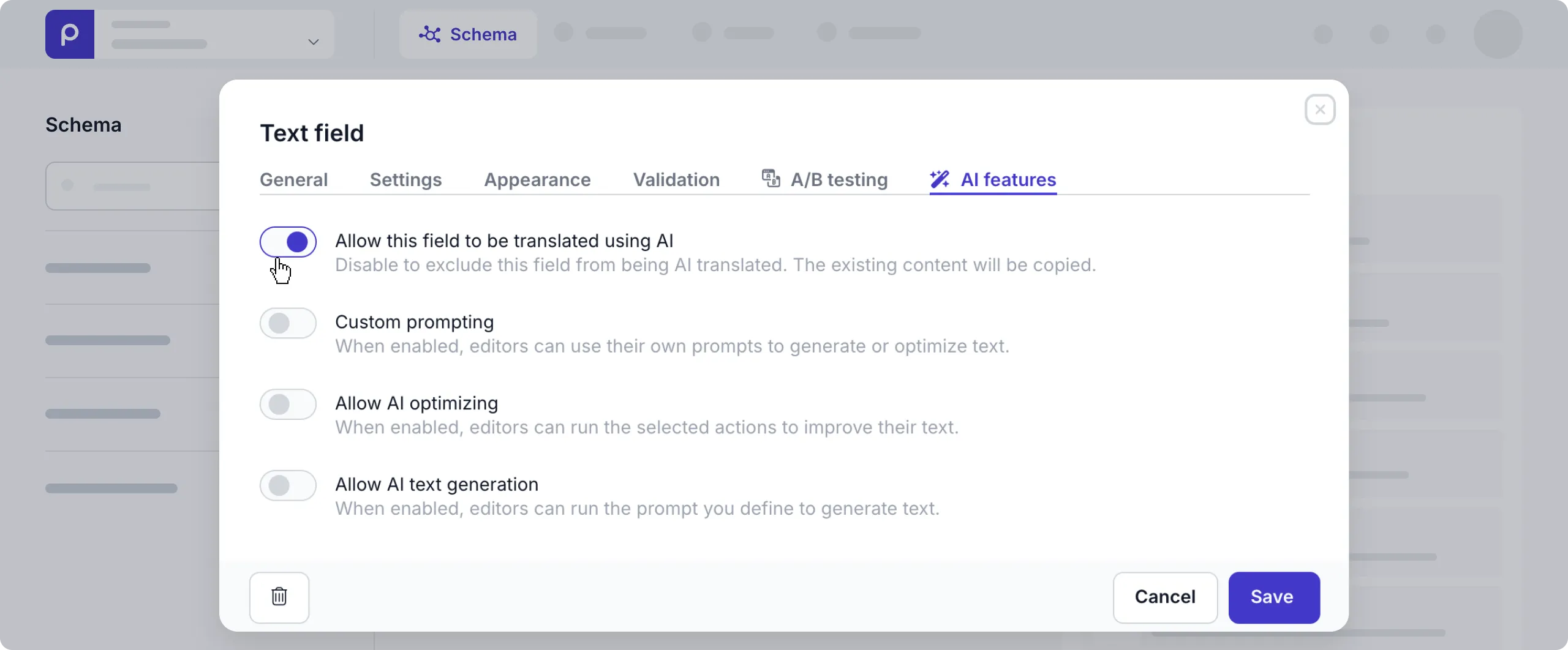
Click the applicable field to open the Settings, and go to the AI features tab.
-
Switch off the Allow this field to be translated using AI toggle.
Now when a content editor translates a content item for this model, this field will not be translated, but simply copied to the new language version.
Retranslating a language variant
Content editors can choose to retranslate a specific language variant to replace all the text based on a source language variant. For example, when the source language variant has a lot of changes since the first translation.
Customized prompting
Content editors can make an AI request to generate or optimize any text (text or dynamic content fields) in their content item by entering their own prompts.

This gives content editors more control over generating or optimizing their content.
To enable custom prompting for specific fields, follow the steps below.
-
In the Schema page, choose the model you want to update.
-
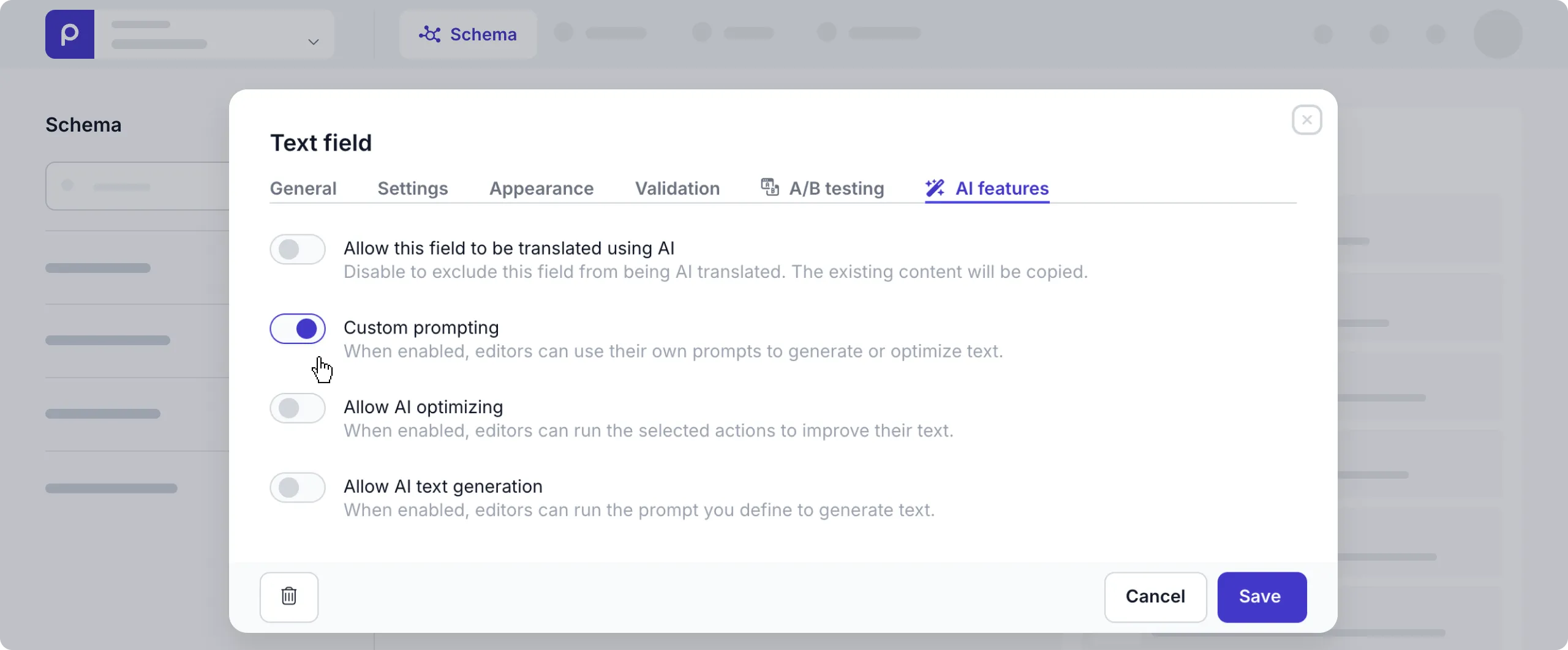
Click the applicable field to open the Settings and go to the AI features tab.
-
Enable the Custom prompting toggle.
Once done, content editors will see the Ask AI action when hovering over the enabled field and can choose the Your request option to enter their own prompts.
Optimizing text
Content editors can use AI to improve existing text, for example, to make their text longer, shorter or simpler.

This feature makes it quicker and easier for content editors to create engaging text in their content.
To enable AI text optimizing for specific fields, follow the steps below.
-
In the Schema page, choose the model you want to update.
-
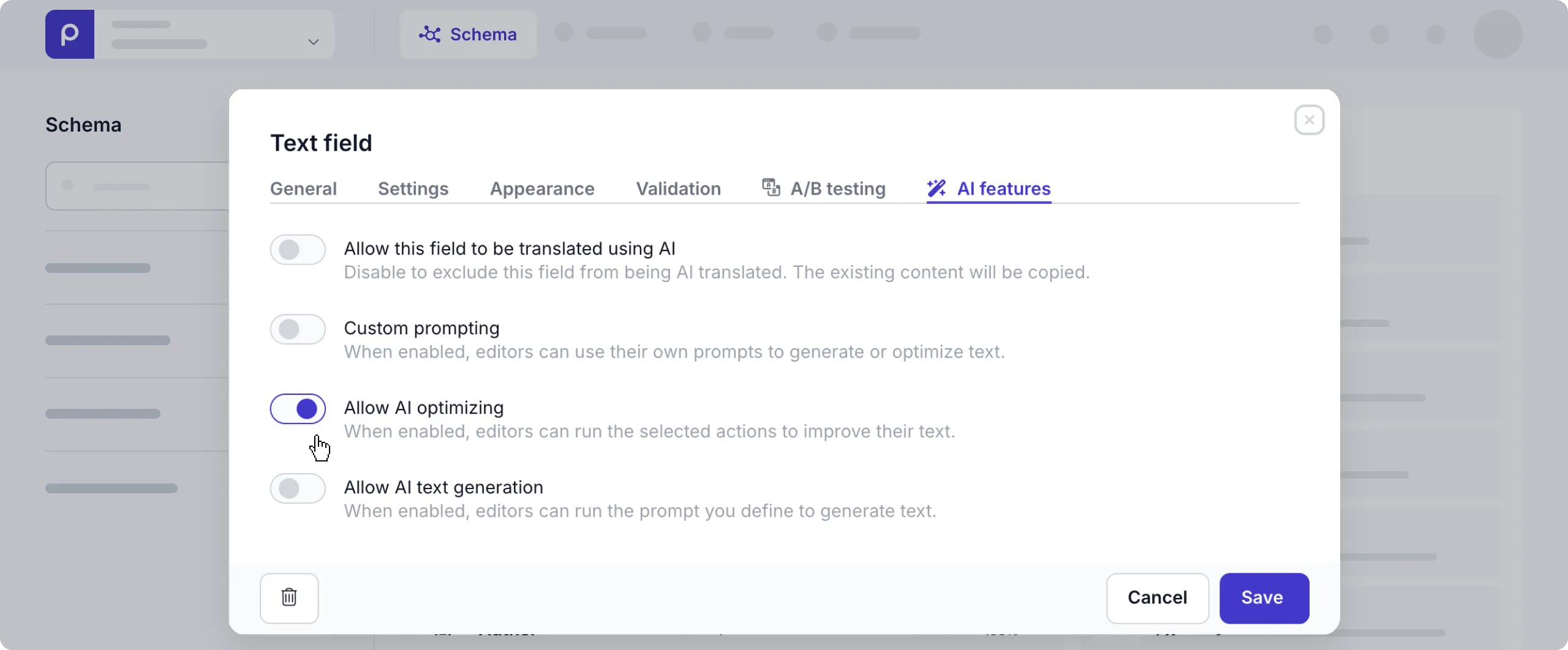
Click the applicable field to open the Settings and go to the AI features tab.
-
Enable the Allow AI optimizing toggle.
Once done, content editors will see the Ask AI action when hovering over the enabled field and the following Ask AI actions will then be visible:
- Improve writing
- Fix spelling and grammar
- Make shorter
- Make longer
- Simplify language
Generating text
Content editors can auto-generate text with AI based on predefined prompts. For example, to create an SEO title based on the main title of an article.

This feature makes it quicker and easier for content editors to create engaging text in their content.
To enable AI text generation for specific fields, follow the steps below.
-
In the Schema page, choose the model you want to update.
-
Click the applicable field to open the Settings and go to the AI features tab.
-
Enable the Allow AI text generation toggle.
-
To set the prompt, it’s easiest to choose one of the suggested prompts and adjust it for your own needs.
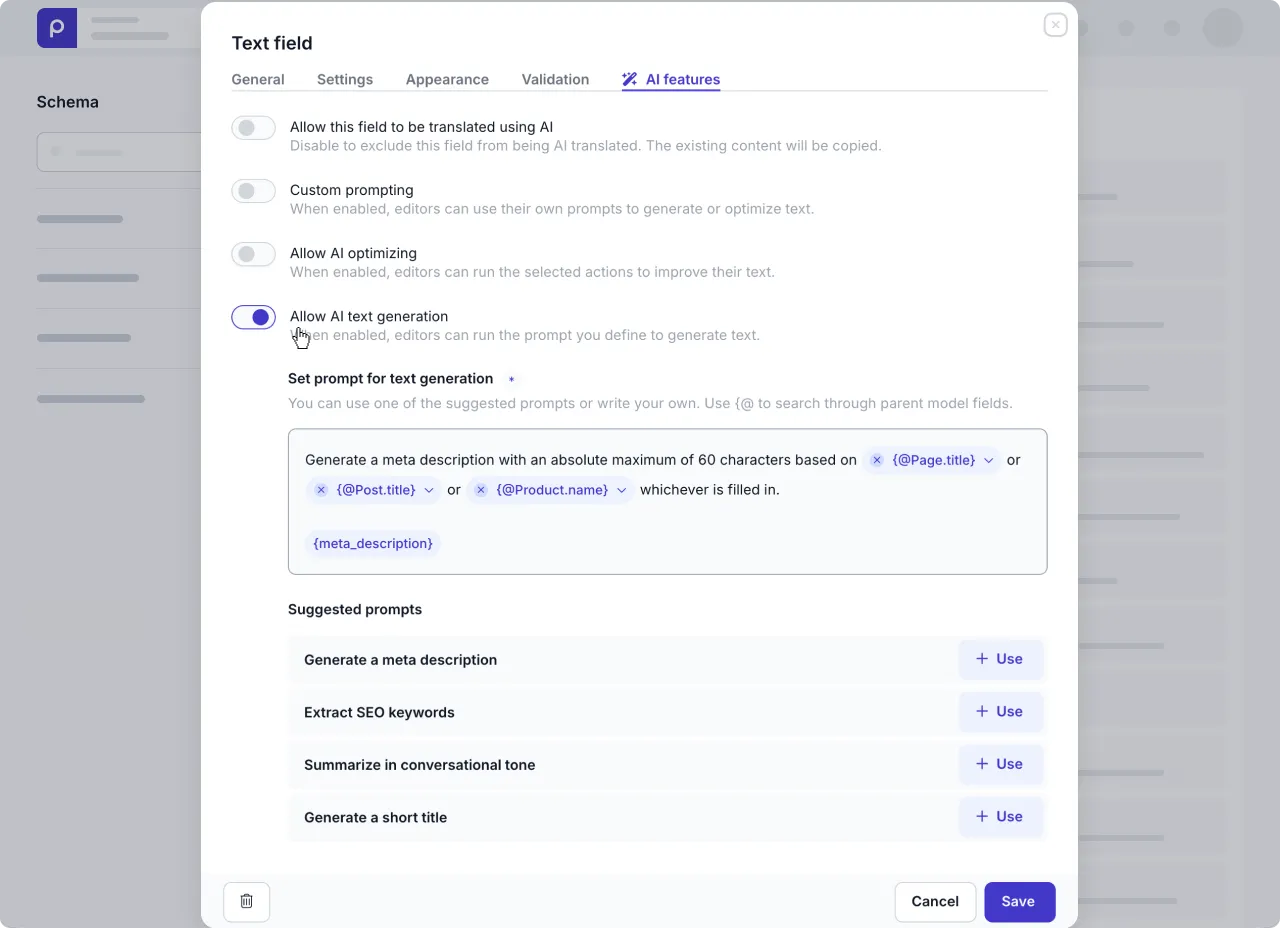
Once done, content editors will see a Generate text option when they click to Ask AI above the field they want to auto-generate with AI.
For text fields in components, you can add fields from any model to the prompt. For example: In the SEO component, generate the Meta title field from the Page Title with the prompt:
Generate a meta title with an absolute maximum of 60 characters based on {@Page.title}.
Checking SEO values
The Content check feature automatically checks a content item for nonoptimal SEO values and makes suggestions you can choose to apply, adjust or ignore.
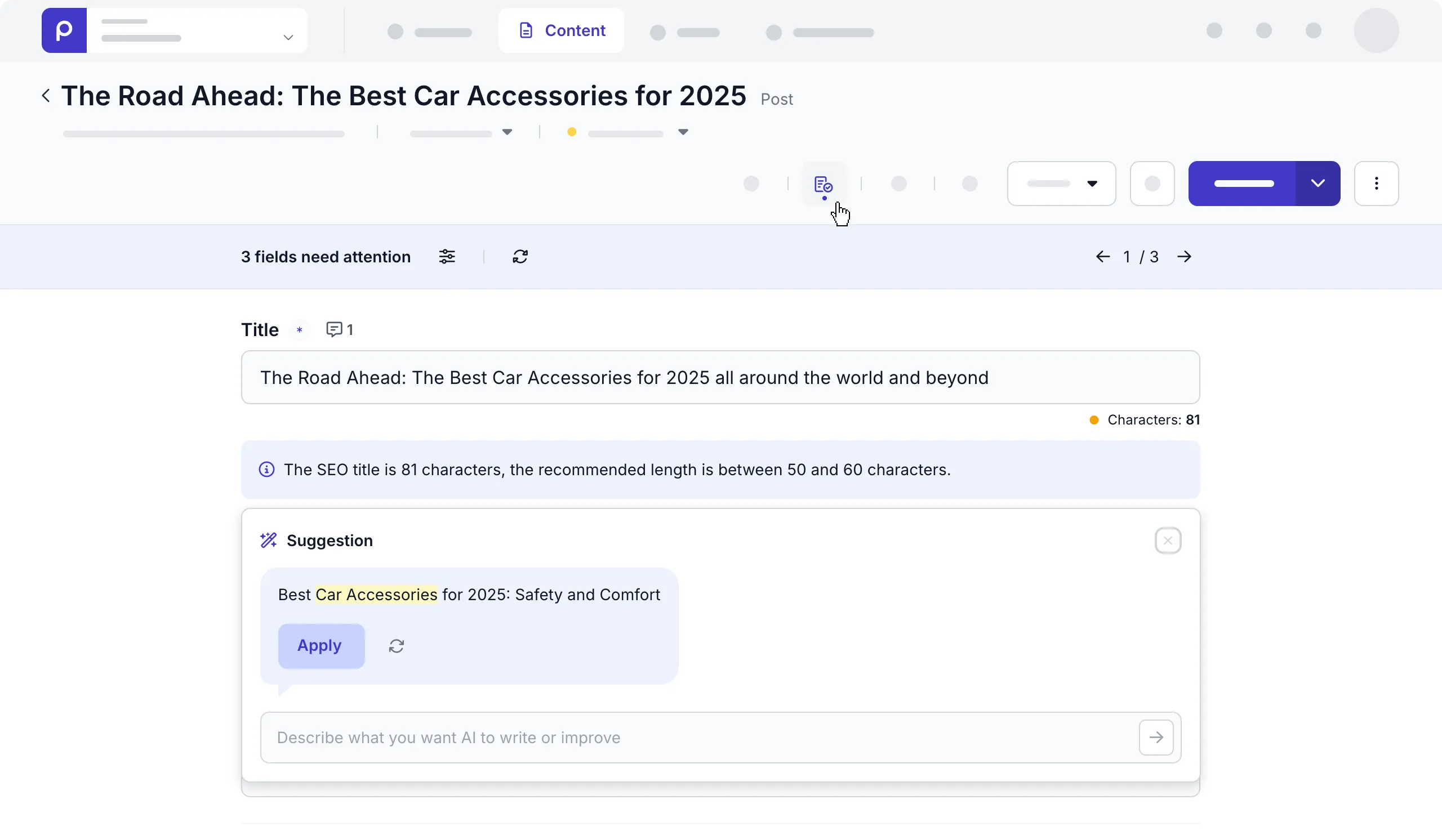
The Content check feature is enabled by default when you create a model. It makes the icon available when editing a content item.
To disable this feature, follow the steps below.
-
Go to the Schema tab and choose the model you want to update.
-
Open the applicable model where you don’t want content editors to use the Content check feature.
-
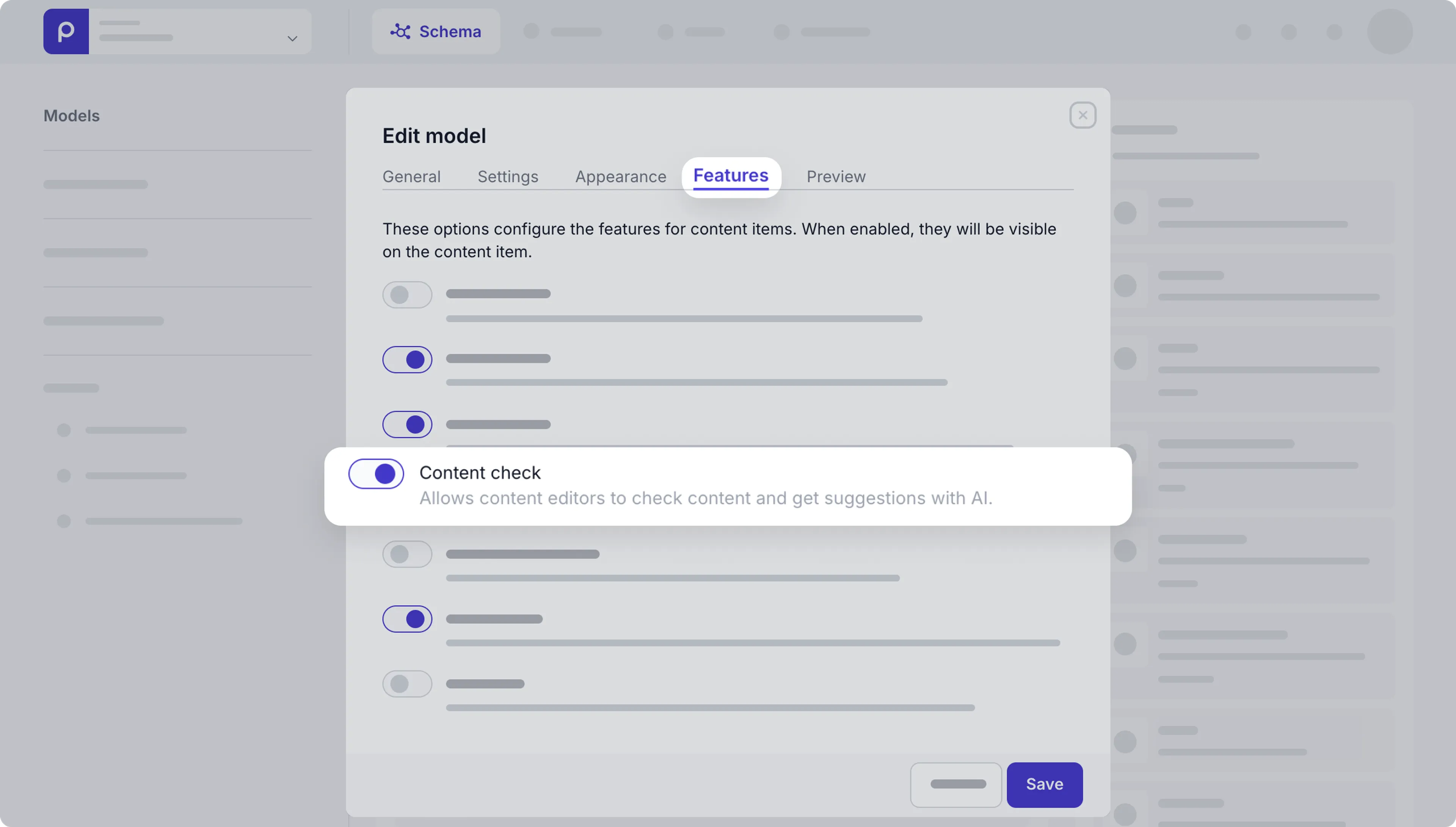
Click the Settings button to open the model settings.
-
Go to the Features tab and switch off the Content check toggle and click the Save button.
Now, content editors won’t see the action when they open a content item for this model.
Data privacy Since we are using the OpenAI API, data will be stored for 30 days (by default, for violation checks), but will not be used for AI training purposes.