Implementing an AI-assisted content migration
This guide gives you a step-by-step process for migrating web pages, blog articles, and related content to Prepr CMS using AI to accelerate the repetitive work.
Introduction
The steps below are based on lessons learned during our content migration when we redesigned the schema for a new Prepr website. Though it’s a migration from one Prepr environment to another Prepr environment, these had very few direct one-to-one mappings between the old and new structure. By running an AI-assisted migration project with a defined migration strategy, we could save time and effort migrating complex content structures.
Prerequisites
The process below assumes the following is in place.
- A newly defined schema in the target environment for the new website.
- A mostly complete web app based on the new schema. In other words, low risk of needing to rework the migration.
- No content items in the target environment. This means, any sample content items to test the web app have been removed.
- Your AI coding assistant is set up with the Prepr MCP server for both the old environment and the new environment. Using your AI coding assistant with the Prepr MCP server lets you review content items in these environments when troubleshooting issues.
Content migration strategy and AI interaction
Follow this high-level strategy for an efficient content migration.
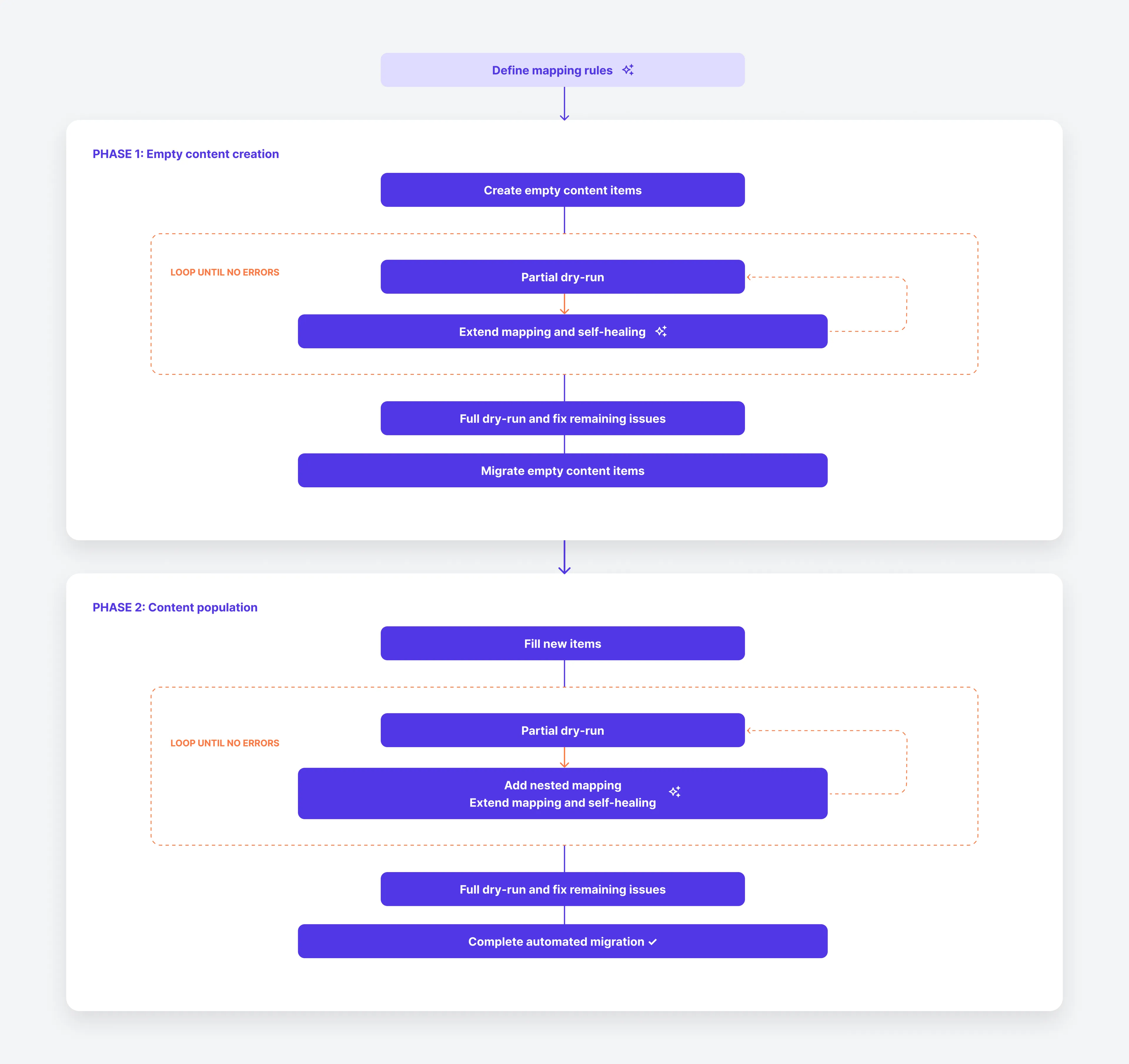
This content migration strategy follows some ground rules:
- Create empty content items first before filling in remaining fields
Following this process reduces missing reference IDs. - Separate the migration into small, independent steps
- Don’t over-engineer the migration
Use lightweight technologies like a Node.js script in plain JavaScript to build the short-term migration script and avoid technologies like Typescript and NestJS which are more suited to long-term structured backend applications. - Create a mapper for each section in a Stack field
The Prepr mutation API doesn’t provide predefined types, so you cannot use AI to guess a mapping structure. - Include a detailed log such as a JSON report
This format makes it easier for your AI coding assistant to analyze and help fix mapping issues.
Define initial mapping rules
The migration of content starts with the mapping between the old and new schema. Follow the steps below to define the initial mapping between the old and new models.
-
Export both old and the new models as JSON files. Check out the syncing schemas guide on how to export a full schema to your preferred repository.
-
Using the schema JSON files and the old content items as context, ask the AI to define a schema mapping like the example snippet below.
[ { "oldName": "Person", "oldModelId": "c71ca99d-a9f8-4ab9-9d55-8422b7b24139", "oldTitleField": "name", "newName": "Person", "newModelId": "b09b4e0b-35f4-46d2-a9ee-c183f9f47ef0", "newTitleField": "name" }, { "oldName": "Page", "oldModelId": "30eb21e3-88e6-45a6-89ca-2916a2a997d1", "oldTitleField": "internal_title", "newName": "Page", "newModelId": "b621dc19-d1db-40ef-a7e2-301a7bfc8cae", "newTitleField": "internal_title", "newSlug": true }, { "oldName": "Article", "oldModelId": "8588d2ad-f529-4bc8-a3ce-c498a3d91260", "oldTitleField": "title", "newName": "Post", "newModelId": "fae3ce54-0003-487a-99d5-e9785bd9cc1e", "newTitleField": "title", "newSlug": true }, { "oldName": "InlineCTA", "oldModelId": "c14b4592-6f90-4555-b692-d59ffbc66361", "oldTitleField": "headline", "newName": "CTA", "newModelId": "9c8d0009-e93b-4ff4-99d9-91f8d70c0af7", "newTitleField": "internal_title" }, { "oldName": "SectionCtaImage", "oldModelId": "bf48dbcc-c70c-4843-887b-1f94f32e89f6", "oldTitleField": "title", "newName": "CTA", "newModelId": "9c8d0009-e93b-4ff4-99d9-91f8d70c0af7", "newTitleField": "internal_title" }, { "oldName": "SectionFAQ", "oldModelId": "769f3a42-add3-432f-98a9-539e8cb70fa6", "oldTitleField": "internal_title", "newName": "FAQList", "newModelId": "5975c250-de41-4c26-82f4-cb4f456a77ec", "newTitleField": "internal_title" } ] -
Review the mapping file and refine your prompt or the file directly to adjust the mapping.
Create migration scripts
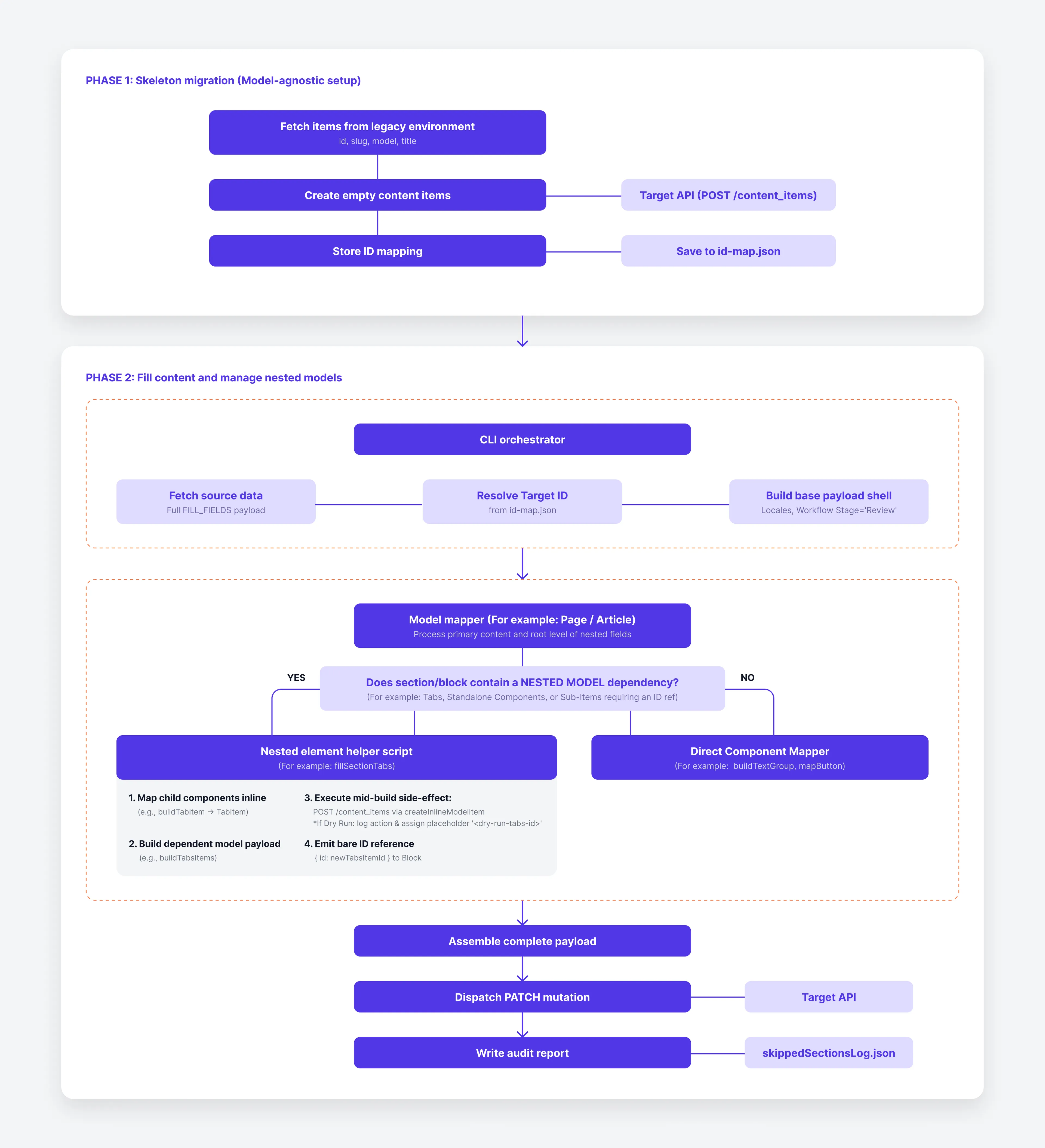
To make sure that the migration can be run in manageable slices, build the scripts you need for the execution flow below.
CLI script: Create assets
Ask your AI code assistant to help create this CLI script.
It exposes the --dry-run (-d) flag for test mode that simulates the run without creating assets.
This script performs the following tasks:
- Loop through each old asset used in a content item.
- For each asset retrieved, create a single asset (unless in
--dry-runmode), - Store the new and old asset IDs with the linked content ID of the source content in an asset mapping file. You need the ID mapping to link it to the correct content at a later stage.
- Output the result and keep track of any unsaved IDs. Report includes the total count of created assets, failed assets and recorded ID mappings.
CLI script: Create empty content items
Ask your AI code assistant to help create this CLI script.
It exposes two optional flags:
--dry-run (-d): Test mode that simulates the run without creating or modifying content.--model <name> (-m): Filter mode to migrate a single, specific model type rather than all models.
It performs the following tasks:
- Loop through each entry in the schema mapping file.
- For each model, fetch all the old content items.
- For each old item retrieved, create a single content item (unless in
--dry-runmode) to generate a new empty item with just a title and slug value. - Store the old and newly created ID mapping. You need the ID mapping to create the matching reference content at a later stage.
- Output the result and keep track of any unsaved IDs. Report includes the total count of created items, failed items and recorded ID mappings.
CLI script: Fill content items
Ask your AI code assistant to help create this CLI script.
This CLI script exposes the following parameters:
-
--dry-run (-d): Simulates updates without updating any new content items. -
--model <name> (-m): Restricts updates to items belonging to a specific model. -
--slug <name> (-s): Fills only a single content item matched by its slug. -
--id <id> (-i): Fills only a single content item matched by its ID. -
--limit <n> (-l): Caps the maximum number of items processed per model.
This script performs the following tasks:
- Using the API, fetch the nested fields, for example sections in the dynamic content field or stack field.
- Construct the payload for a
PATCHorPUTas follows:- Look up the corresponding new content item ID using the ID mapping stored when new content items were created.
- Set all new content items to
Reviewstage. Useful for content editors to identify the migrated content items they need to review. - Call model and section-specific functions to fill nested content.
- Update the target content items, unless in
--dry-runmode. If it’s a dry run, then output the generated payload without sending an API request. - Generate a JSON report for any unmapped content items.
Helper scripts per model
This migration strategy splits the mapping into manageable slices by having separate scripts per new model. While the CLI script, Fill content items is model-agnostic and manages mapping between models, it calls helper scripts per new model to map the fields in a model.
These helper scripts perform the following tasks:
- Map model-specific fields. For example, for pages they map nested structures in the Stack field and for articles, they map to elements in a Dynamic content field.
- Using the asset mapping file and the content ID mapping, link the assets to the new content items.
- Add the transformed content to the payload for the request.
Helper scripts per nested element
For models like pages and articles that include nested elements, the mapping is split into a separate script per element. These helper scripts help you pinpoint very specific mapping issues.
We recommend building the helper scripts iteratively. Follow the process below in dry-run mode to make sure the CLI scripts are stable before building all model-specific and nested element-specific scripts.
Test and run the migration
Use the same test-and-run cycle for both migration phases: first create the empty content items and their ID mappings, then fill those items with content. Complete the first phase before starting the second so that references can resolve to the new item IDs.
Define the success criteria
Measure success against the content that is in scope.
- Creating empty content items: Make sure every eligible source item has a corresponding empty target item and a saved ID mapping.
- Filling content items: Check that every required field and reference is mapped to the target schema.
For these two phases, the report contains no unexplained failures. Any intentional exclusions or items that require manual migration are documented with an owner or next action.
These criteria let you distinguish accepted exceptions from migration defects. You can move to a full dry run when the remaining report entries have a clear resolution, even if some will be handled manually.
Follow the test-and-run cycle
For both the create and fill phases, follow the steps below.
- Start with a partial dry run:
- When running the CLI script to create empty content items, use
--dry-runwith--model. - For the fill phase, use
--dry-runwith--idor--slug, then expand the test to each--model.
- When running the CLI script to create empty content items, use
- Read the JSON report as a structured to-do list. Each entry should identify an unmapped component, failed reference, skipped field, or other specific issue.
- Give the relevant report entries to your AI coding assistant and use them to fix the mapping file, extend the script, or add a missing helper. For example:
Which model mapping is missing for each singular name in this report? - Repeat the partial dry run until the phase meets the success criteria.
- Run a full dry run without the item or model filters and review the report for issues that the partial runs did not expose.
- If the full dry run meets the success criteria, run that phase without
--dry-run:- Run the create phase for all items before starting the fill phase.
- Run the fill phase for one model first, verify the result, and then run it for all remaining items.
Verify the completed migration
After both phases are complete:
- Compare the source totals, created items, and saved ID mappings.
- Spot-check representative content items and nested structures in the Prepr UI and the new web app.
- Confirm that all remaining report entries are documented for manual resolution.
Example prompts
Adapt the following prompts to your schema, migration scripts, and coding assistant. Give the assistant access to the relevant schema files, source items, scripts, and dry-run reports before using them.
Analyze schema to generate model mapping
Use this prompt to analyze the old and new schemas and generate the high level mapping between an old and new model:
Compare the source schema in [SOURCE_SCHEMA_FILE] with the target schema in
[TARGET_SCHEMA_FILE]. Inspect the representative
source content items in the legacy environment: [LEGACY_ENV]

For every source model:
- Suggest the corresponding target model for each source model.
- Compare the field types, localization settings, validation rules, and allowed
  nested components.
- Identify core fields that map directly, fields that need transformation, and fields
  that have no target equivalent.
- Identify target fields that are required but have no source value.
- Flag references, assets, dynamic content, and Stack fields that need dedicated
  handling.

Return a table of proposed mappings followed by a list of ambiguities and risks.
Do not invent a mapping when the schemas do not provide enough evidence. Ask me
to resolve each ambiguity before generating migration code.
Generate model mapping
Use this prompt to create the initial model mapping file:
Using the approved schema analysis and the source and target schema files, create
the model mapping for [SOURCE_MODEL_NAME]. Follow the structure and naming used
in [EXISTING_MAPPING_FILE].

Include the source and target model IDs, title fields, and slug behavior. Use only IDs and
field names found in the supplied schemas. Add unresolved cases to a separate
`questions` list instead of guessing.

Return the proposed JSON and briefly explain every mapping that is not one-to-one.
Do not modify any files yet.
After approving the model mapping, use this prompt to generate a mapper for a model or nested element:
Create a mapper for [SOURCE_MODEL_OR_ELEMENT] using [EXISTING_MAPPER_FILE] as the
implementation pattern. Map it to [TARGET_MODEL_OR_ELEMENT] according to
[MAPPING_FILE].

Requirements:
- Preserve locale values and resolve references through [ID_MAP_FILE_OR_HELPER].
- Follow the existing payload shape and error-reporting conventions.
- Report unsupported fields or nested elements instead of silently dropping them.
- Keep the mapper focused on this model or element; do not change unrelated code.
- Add or update focused tests if this project has tests for the existing mappers.

Before editing, summarize the proposed field mapping and list any assumptions that
need my confirmation.
Generate scripts
Use this prompt to generate the CLI scripts after approving the schema and model mappings:
Create the CLI scripts for a two-phase content migration defined in
[MAPPING_FILE]. Follow the existing project structure and conventions in
[MIGRATION_DIRECTORY]. Use plain JavaScript and the existing Prepr API helpers;
do not introduce a new framework or abstraction layer.

Create these commands:

1. `create`: Fetch the eligible source items, create empty target items with their
   title and slug values, and save every source-to-target ID mapping. Support
   `--dry-run` and `--model <name>`.
2. `fill`: Fetch the complete source content, resolve target IDs through the saved
   ID mapping, call the model and nested-element mappers, and update the target
   items in the `Review` stage. Support `--dry-run`, `--model <name>`,
   `--slug <name>`, `--id <id>`, and `--limit <n>`.

For both commands:
- A dry run must not create or modify content or write an ID mapping.
- Validate required configuration before processing any items.
- Continue processing when one item fails, but return a non-zero exit status when
  the run contains unexpected failures.
- Produce a structured JSON report with totals and item-level failures, including
  the model, source ID, target ID when available, failure category, and message.
- Do not silently skip unmapped fields, references, or nested elements.
- Keep API access, ID-map storage, reporting, and model-specific mapping in
  separate focused modules.

First inspect the referenced files and propose the files and functions you will
create or change. List any missing API details or mapping decisions instead of
guessing. After I approve the plan, implement one command at a time and show the
targeted dry-run command I can use to verify each one.
Troubleshoot issues
Use a small dry-run report and the relevant mapper as context so the assistant can diagnose a specific pattern instead of making broad changes:
Analyze the failures in [DRY_RUN_REPORT] for [MODEL_OR_ITEM]. Compare them with
[SOURCE_SCHEMA_FILE], [TARGET_SCHEMA_FILE], [MAPPING_FILE], and
[RELEVANT_MAPPER_FILES].

For each failure:
1. Identify the root cause and the affected source and target fields.
2. Classify it as a missing mapping, invalid transformation, unresolved reference,
   unsupported nested element, invalid source data, or expected manual exception.
3. Recommend the smallest safe fix.
4. State how I can verify the fix with a targeted dry-run command.

Group repeated failures by root cause. Do not suppress errors or add fallback data
unless the target schema explicitly supports that behavior. Show me the diagnosis
before modifying any files.
After reviewing the diagnosis, use this follow-up prompt:
Implement the approved fixes for [FAILURE_GROUPS]. Preserve the existing migration
behavior for all other models and elements. Then run the narrowest applicable dry
run or test, summarize the result, and list any failures that still require a
mapping decision or manual migration.
For example code or questions, contact us for a one-on-one developer session.