Managing asset folders
An asset folder represents a set of media files grouped by specific attributes and includes all types of assets. It can be a folder of images, videos, documents and/or audio files.
Asset folder object
See an example below of the asset folder object.
{
    "id": "df7c1544-bad0-4c9d-928f-0c9f684c9ceb",
    "created_on": "2023-06-13T14:35:54+00:00",
    "changed_on": "2023-06-13T14:35:54+00:00",
    "label": "AssetFolder",
    "body": "Branding & backgrounds"
}| FIELD | DESCRIPTION |
|---|---|
| id | Unique identifier for each item. |
| created_on | UTC time at which the asset folder was created. |
| changed_on | UTC time at which the asset folder was last updated. |
| label | Identifier for the object. |
| body | Name of the folder. |
To fetch, create, rename or remove asset folders, make use of the https://mutation.prepr.io/asset_folders endpoint.
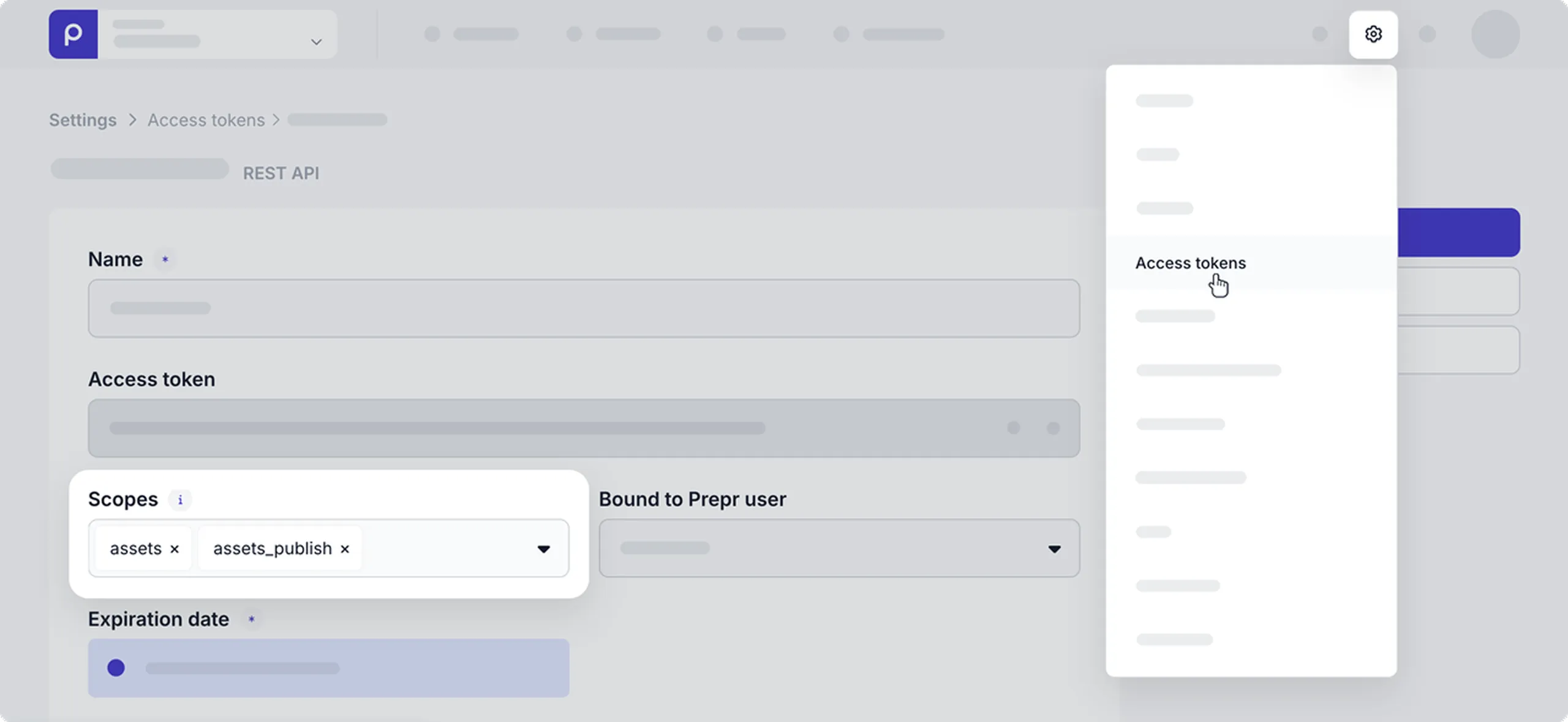
Before making the requests detailed below, make sure to add the assets and assets_publish scope to your mutation access token.
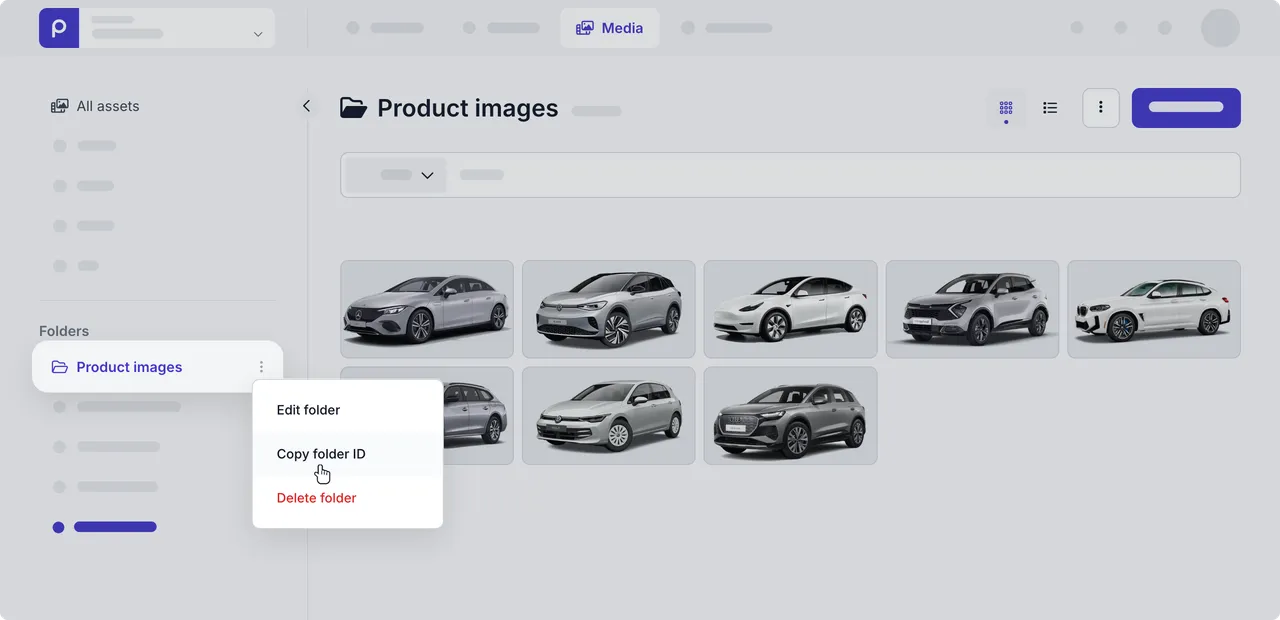
If needed, you can get an asset folder ID in the Media page. Simply hover over the asset folder name, click the icon and choose the Copy folder ID option.
Fetch asset folders
You can fetch all asset folders by making a GET request like in the examples below.
HTTPS request
GET https://mutation.prepr.io/asset_folders
Authorization: Bearer <YOUR-ACCESS-TOKEN>Fetch a single asset folder
To fetch a single asset folder, make the GET request below and replace the placeholder {id} with the asset folder ID value.
HTTPS request
GET https://mutation.prepr.io/asset_folders/{id}
Authorization: Bearer <YOUR-ACCESS-TOKEN>The response returns the asset folder object.
Create a new folder
When you need to organize similar assets into a folder, you can first create an asset folder like in the example request below where the body value is set to the name of the new asset folder.
HTTPS request
POST https://mutation.prepr.io/asset_folders
Authorization: Bearer <YOUR-ACCESS-TOKEN>

{
  "body": "Product images"
}Rename an asset folder
You can rename an existing asset folder by using the PUT request below, replace the placeholder {id} with the asset folder ID value and the body value is the new name of the existing asset folder.
HTTPS request
PUT https://mutation.prepr.io/asset_folders/{id}
Authorization: Bearer <YOUR-ACCESS-TOKEN>

{
  "body": "Product images and videos"
}Remove an asset folder
Before you remove an asset folder using a REST API request, make sure to add the assets_delete scope to your mutation access token.
Use the DELETE request to remove an existing folder and replace the placeholder {id} with the asset folder ID value.
This request only removes the asset folder. Any assets in a removed asset folder are no longer linked to the folder.
HTTPS request
DELETE https://mutation.prepr.io/asset_folders/{id}
Authorization: Bearer <YOUR-ACCESS-TOKEN>Add assets to a folder
To add assets to an existing folder, use the POST request below and replace the placeholder {id} with the asset folder ID value.
Specify the asset ID values of all the assets you want to add as an items array.
HTTPS request
POST https://mutation.prepr.io/asset_folders/{id}/assets
Authorization: Bearer <YOUR-ACCESS-TOKEN>
Content-Type: application/json

{
  "items": [
    {
      "id": "234h-432847-x23498-763x4-324x234"
    },
    {
      "id": "30f064f4-8acb-4ee9-9e79-81d7029cc0c7"
    }
  ]
}This process only adds new assets to the folder. If this folder already has assets, these remain in the folder unchanged and duplicate entries are simply ignored.
Remove assets from a folder
Before you remove assets from a folder using a REST API request, make sure to add the assets_delete scope to your mutation access token.
To remove assets from an existing folder, use the DELETE request and replace the placeholder {id} with the asset folder ID value.
Specify the asset ID values of all the assets you want to remove as an items array.
HTTPS request
DELETE https://mutation.prepr.io/asset_folders/{id}/assets
Authorization: Bearer <YOUR-ACCESS-TOKEN>
Content-Type: application/json

{
  "items": [
    {
      "id": "234h-432847-x23498-763x4-324x234"
    }
  ]
}