Bynder
In this guide, you’ll learn how to activate the Bynder integration in Prepr CMS. This integration allows content editors to access Bynder assets so teams can work with approved media from an enterprise DAM platform directly in Prepr.
The Bynder integration is only available if you’ve activated the DAT module for your Bynder account.
Introduction
Bynder is an enterprise digital asset management (DAM) platform. If your organization uses Bynder as the central source for images and other media, you can make those Bynder assets available directly in Prepr content items. This way, content editors can work with centralized DAM assets without switching between systems.
Using Bynder assets in Prepr
You can enable the Bynder integration to use Bynder assets in Prepr CMS by following the steps below.
Activate the integration in Prepr
You can activate the Bynder integration directly in Prepr.
- Click the icon to open the Settings menu and choose the Integrations option to view all integrations. Go to the Bynder card and click the Activate button.
If you do not have access to the Bynder integration yet, you can click the Try for free for 30 days button or contact our Sales team to activate the integration for longer than 30 days.
- In the Bynder app screen, paste the Domain value for your Bynder account and click the Save button.

Embed Bynder assets in content items
Once your Bynder integration has been activated, content editors can select Bynder assets directly in their content items.
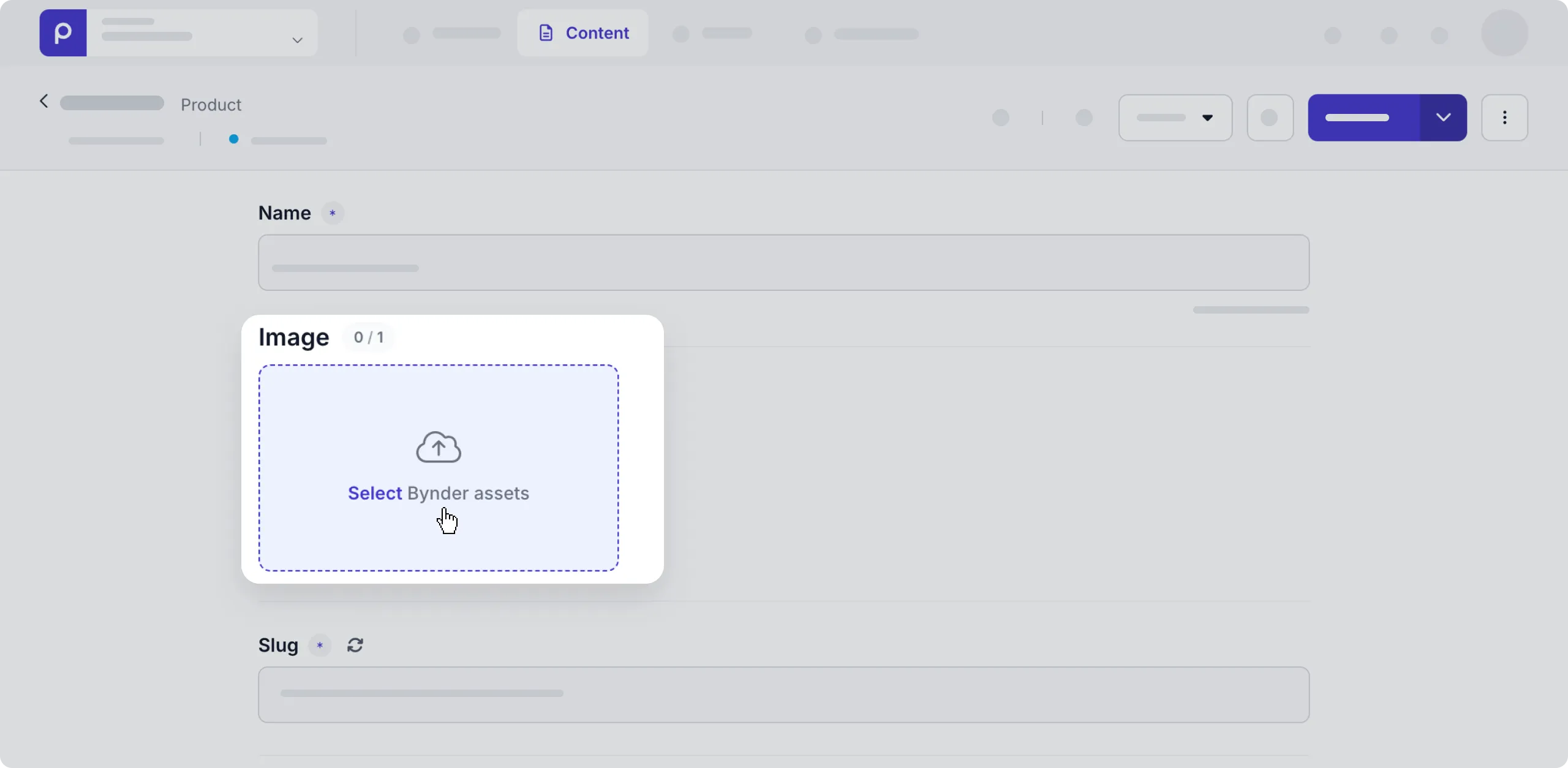
When a content editor connects to Bynder for the first time, they may need to sign in with their Bynder account credentials.

Retrieve Bynder assets using the API
Now that the assets have been embedded in content items, you can retrieve the asset details together with the content items in your front end. For each embedded image from Bynder, you can get the following details when making the API request:
url: The URL location of the image.name: The title of the image.author: The author of the image.description: More detailed info about the image.
Check out the example code snippet below.
Request
query {
  Cars {
    items {
      image {
        url
        name
        author
        description
        alt_text
      }
    }
  }
}For more details on how to retrieve other content item details, check out the GraphQL API docs.
For details on different formatting options for the images you want to retrieve, check out the image API docs.
That’s it. The Bynder integration lets your team work with enterprise DAM assets directly in Prepr content.