Managing visitor data manually
This guide explains how to perform different actions on visitor data directly in Prepr.
Introduction
All visitors, both anonymous and known, who interact with your web app can be stored and tracked in Prepr. When you store visitor profiles in Prepr, you can track their interactions to understand common characteristics and behavior. This allows you to personalize their experiences by grouping them into Segments. For more details, check out the Managing segments guide.
Manage visitors in Prepr by adding, updating, merging, exporting, anonymizing, and deleting visitor profiles.
Adding visitor profiles
You can add visitor profiles in Prepr automatically or manually. When you enable Prepr tracking in your web app to collect visitor data, profiles are automatically created in the system for each web app visitor, if they don’t already exist, Alternatively, you can also add visitor profiles manually in two ways.
Import visitor profiles
To manually import multiple visitors into Prepr follow the steps below.
-
Go to the Segments tab.
-
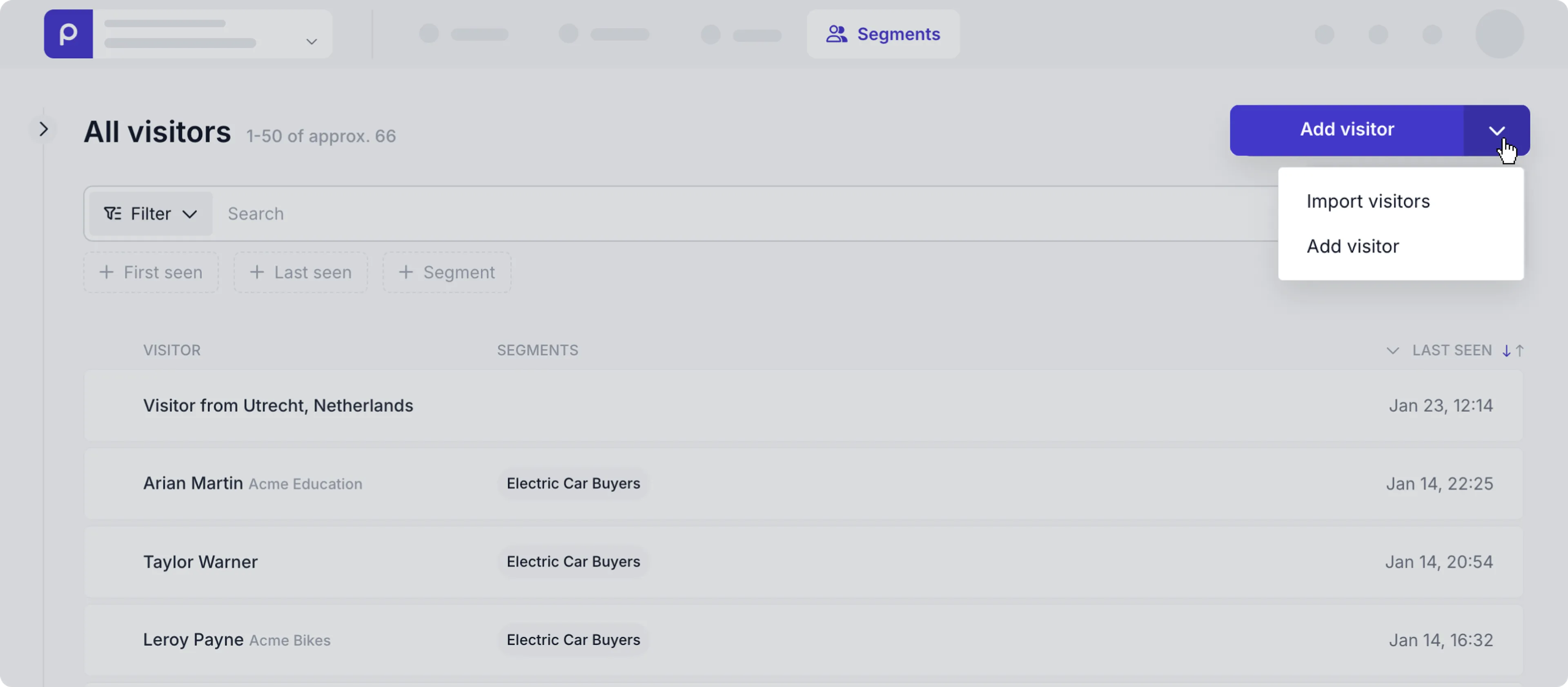
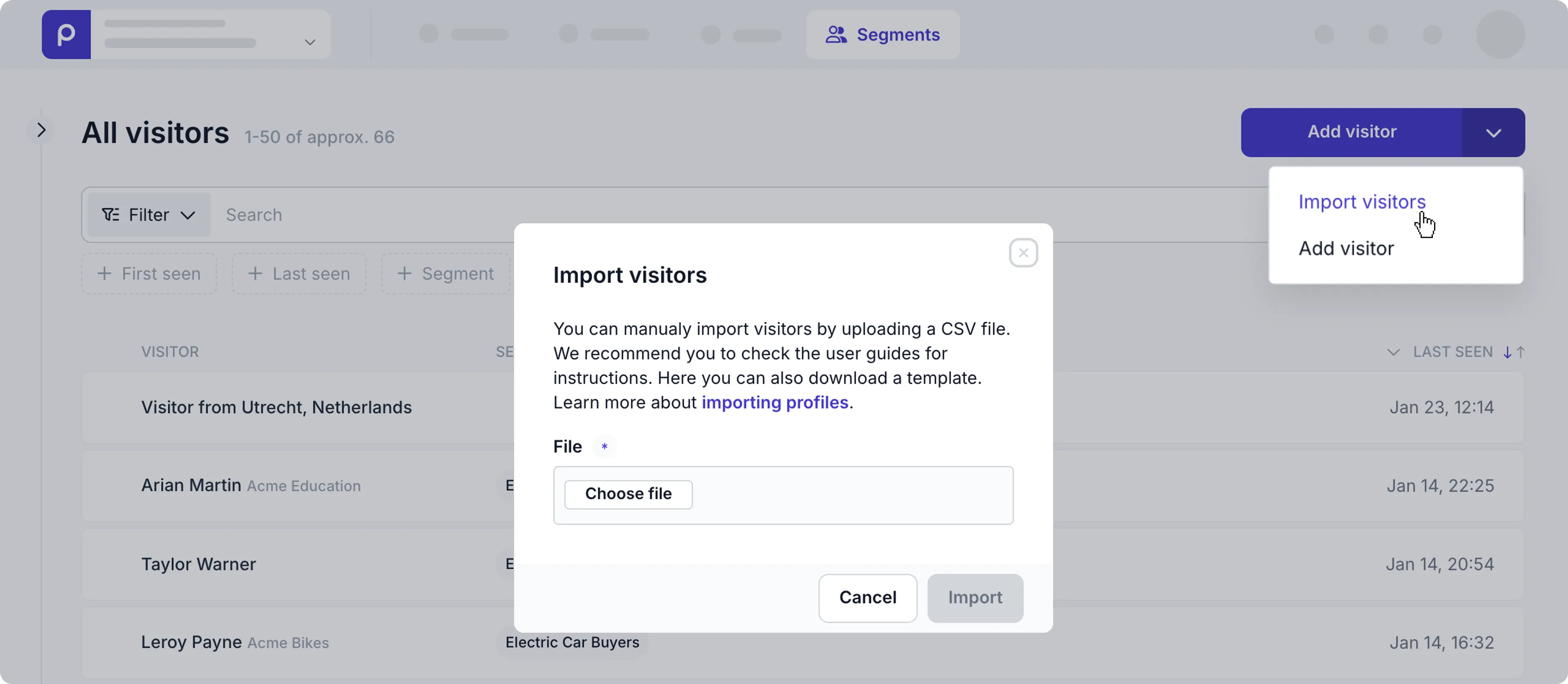
In the All visitors page, click the Add visitor dropdown and choose Import visitors to upload a CSV file.
-
Use the table below to create the complete CSV file.
Column title Variable Format first_name First name last_name Last name email Email address Valid email address country Country Only English notation allowed tags Tags Comma-separated reference_id Reference Only alphanumeric characters allowed. Visitors are matched based on the email address.
- If an email address does not yet exist in Prepr, this visitor will be added.
- When an e-mail address already exists in Prepr, this visitor will be updated. If the field is filled in the import file, but not in Prepr, the field will be filled in Prepr.
- When no email address is imported, the visitor will be added in Prepr.
After the import, you will receive an email with a summary of the following information:
- How many new visitors have been created
- How many known visitors have been updated with new information
- How many visitors were already fully present in the database
- How many rows were imported (and how many failed, reason included)
Add a single visitor profile
To manually add one visitor profile, follow the steps below:
- Go to the Segments tab.
- In the All visitors page, click the Add visitor button to create one profile.
- Enter the First name and Last name, if needed, and click the Save button.
Updating visitor profiles
To update a single visitor profile, follow the steps below:
-
Go to the Segments tab.
-
In the All visitors page, use the Search or Filter to find the visitor that you want to update.
-
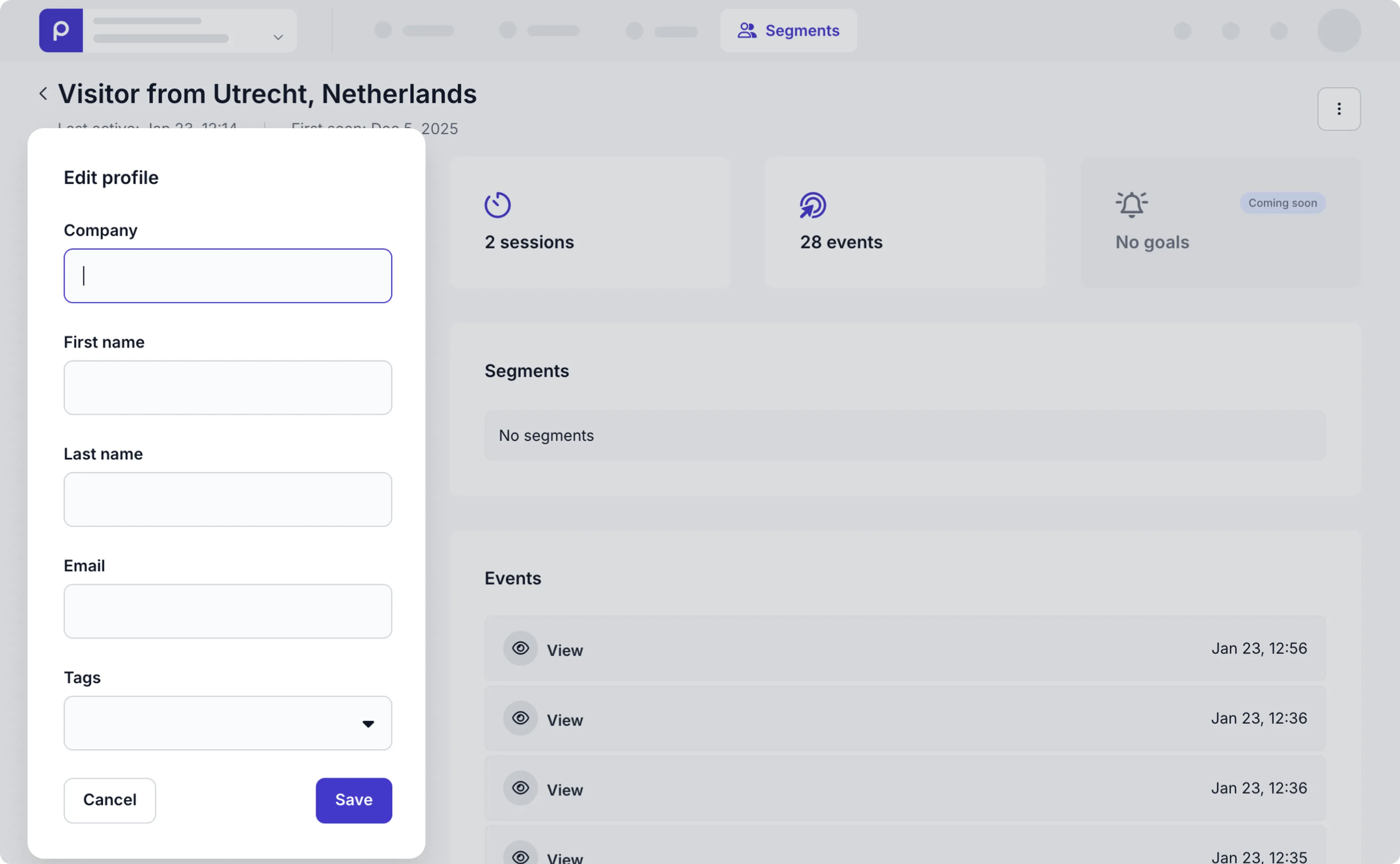
Click the visitor and click the Edit icon in the Personal Info section on the left and update or enter values for the Company, First name, Last name, Email or Tags.
-
When done, click the Save button.
To update multiple visitor profiles, import them with matching email addresses or use the mutation API.
Merging visitor profiles
A good visitor database is a tidy database. This means that profiles are enriched with the correct visitor data and any duplicates are removed. You can easily merge visitor profiles directly in Prepr, if you have the necessary permissions. In other words, you can combine duplicate profiles, where one profile contains certain data and the second profile contains other data about the same person.
To merge two profiles, follow the steps below.
-
Go to the Segments tab.
-
In the All visitors page, use the Search or Filter to find the visitor that you want to merge.
-
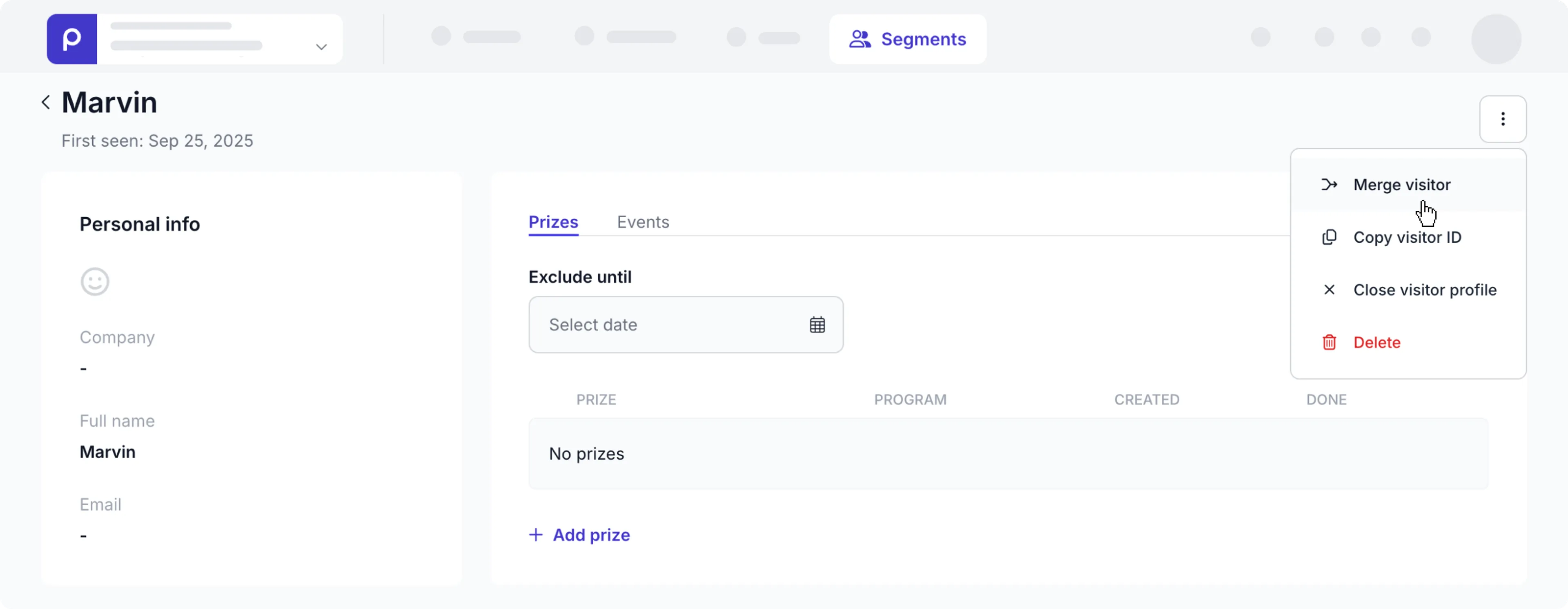
Click the visitor to open the Visitor page and click the icon to open the actions drop-down menu.
-
Choose the Merge visitor option to open the search dialog.
-
Enter the name or ID to find and select the matching visitor profile. Then click the Merge button.
When two visitor profiles are successfully merged, the fields will be updated as follows:
- All fields of which only one is allowed (such as name, or date of birth) are filled in if they are empty in the main profile.
- All fields of which more than one is allowed (such as events, email addresses, or telephone numbers) are added to the main profile.
Exporting visitor profiles
You can export visitor profiles in two ways:
- A single visitor profile (for GDPR purposes)
- Bulk export of all visitor profiles to a CSV file.
GDPR export
Use the GDPR export to give individuals the right to request a copy of any of their personal data which are being used in any way according to the General Data Protection Regulation.
-
Go to the Segments tab.
-
In the All visitors page, use the Search or Filter to find the visitor that you want to export.
-
Hover over the visitor to the right and click the icon.
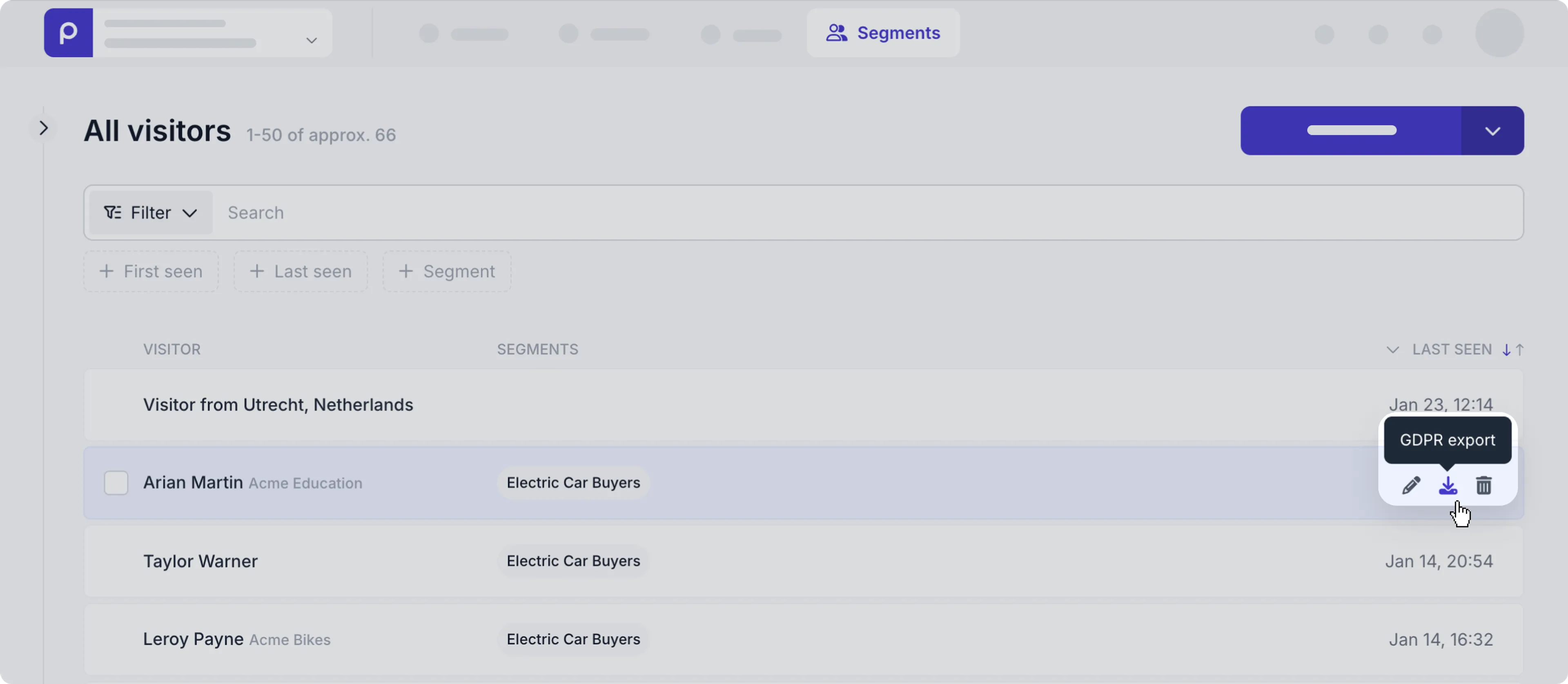
A JSON file for this visitor will be directly downloaded to your local device.
Bulk GDPR export
Use the bulk Export action to export the full Prepr visitor list to a CSV file.
-
Go to the Segments tab.
-
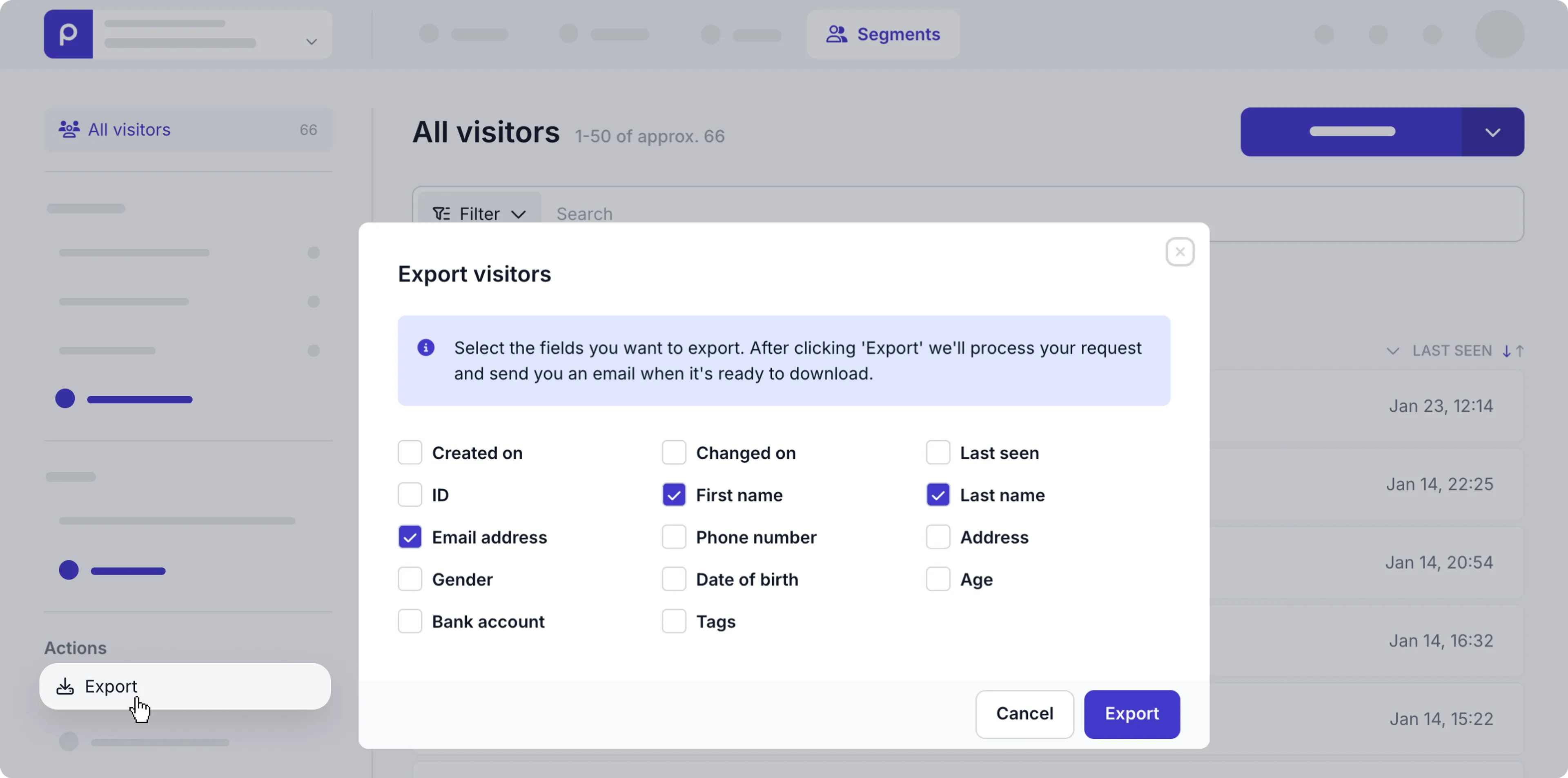
In the Actions section in the bottom left of the page, click the Export link to open the export modal.
-
Choose the fields that you want included in the export and click Export.
We’ll process your request and send you an email when it’s ready to download.
The visitor export is only available for user roles with bulk export permissions.
Deleting visitor profiles
You can delete visitor profiles in bulk or one at a time.
Bulk delete visitors
Follow the steps below to select multiple visitors from the All visitors list and delete them.
-
Go to the Segments tab.
-
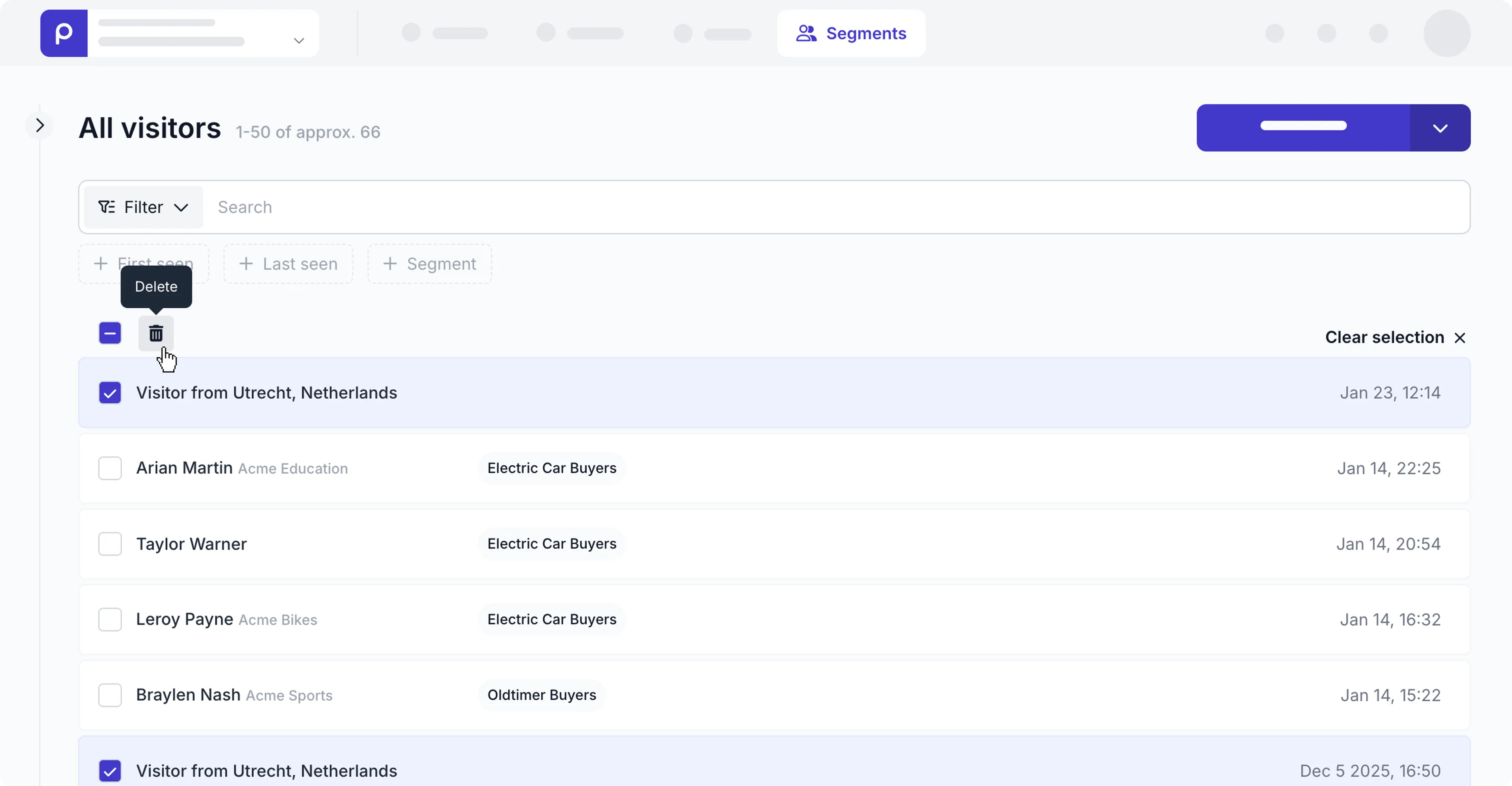
In the All visitors page, hover over and click the checkbox for the visitors you want to delete.
-
To select all visitors, click the icon at the top of the list.
-
Click the icon at the top of the list to delete all the selected visitors.
-
In the pop-up window, click the Delete button to confirm the action.
Delete a single visitor profile
Follow the steps below to delete a single visitor profile from the All visitors list.
-
Go to the Segments tab.
-
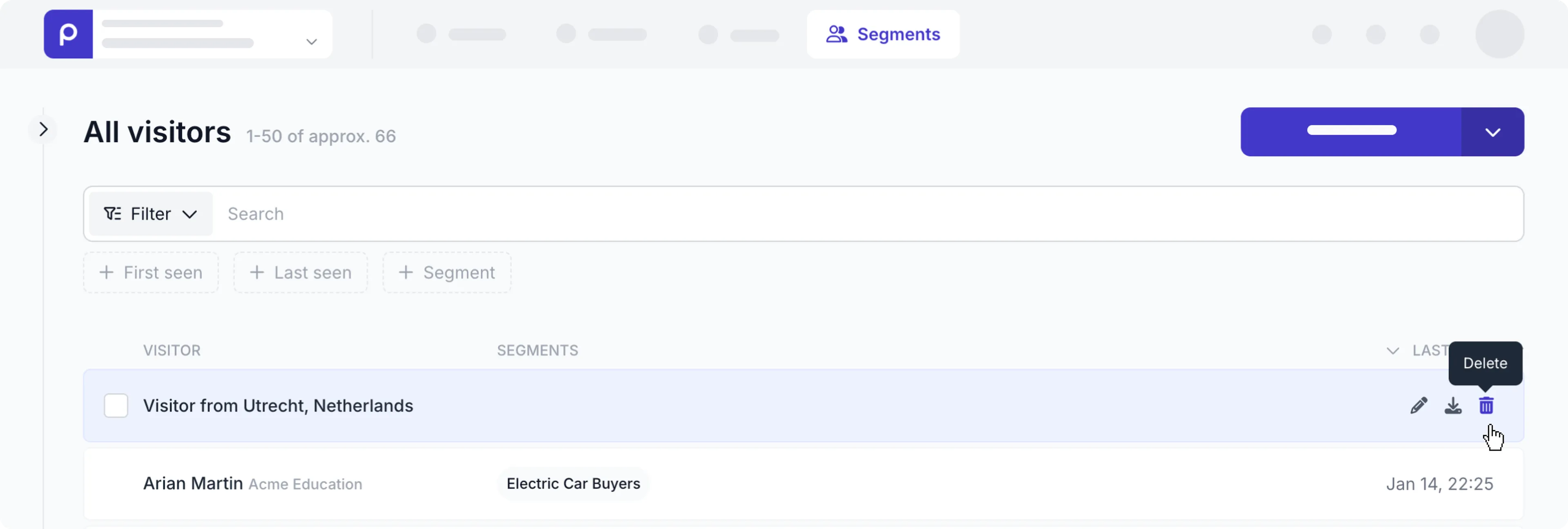
In the All visitors page, hover over the visitor you want to delete to make the actions available.
-
Click the icon on the right to delete the highlighted visitor.
-
In the pop-up window, click the Delete button to confirm the action.
You can also delete a visitor profile directly in the visitor profile detail page.
-
Go to the Segments tab.
-
In the All visitors page. Use the Search or Filter to find the visitor that you want to delete.
-
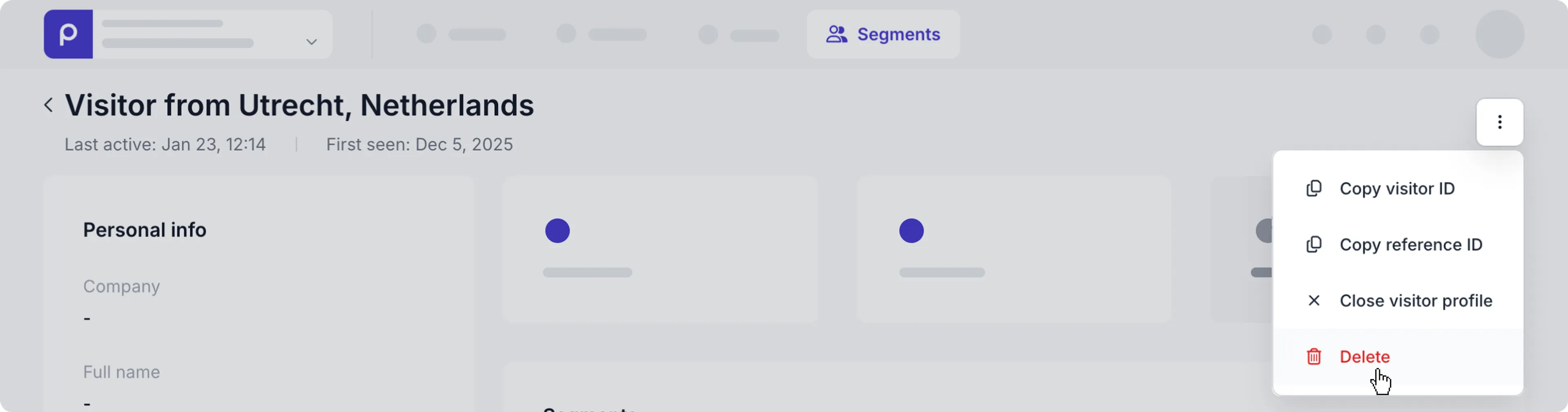
Click the visitor to open the Visitor page and click the icon to open the actions drop-down menu.
-
Choose the Delete option.
-
In the pop-up window, click Delete again to confirm the action.